Remove devices, the hub or a home
Remove devices properly so they can be reused, remove the smart hub without losing devices, delete a home or your account — with screenshots.
Updated:
Screenshots show the app in Vietnamese. The English app has the same screens, with the buttons in the same places.
Every delete action asks you to confirm; tap Cancel if you change your mind.
Remove a light, switch or sensor
⋮ → Device info → Delete device → Delete. The device is reset to factory state and leaves your home, ready to be used elsewhere. If your home has no smart hub, stay close to the device while deleting.
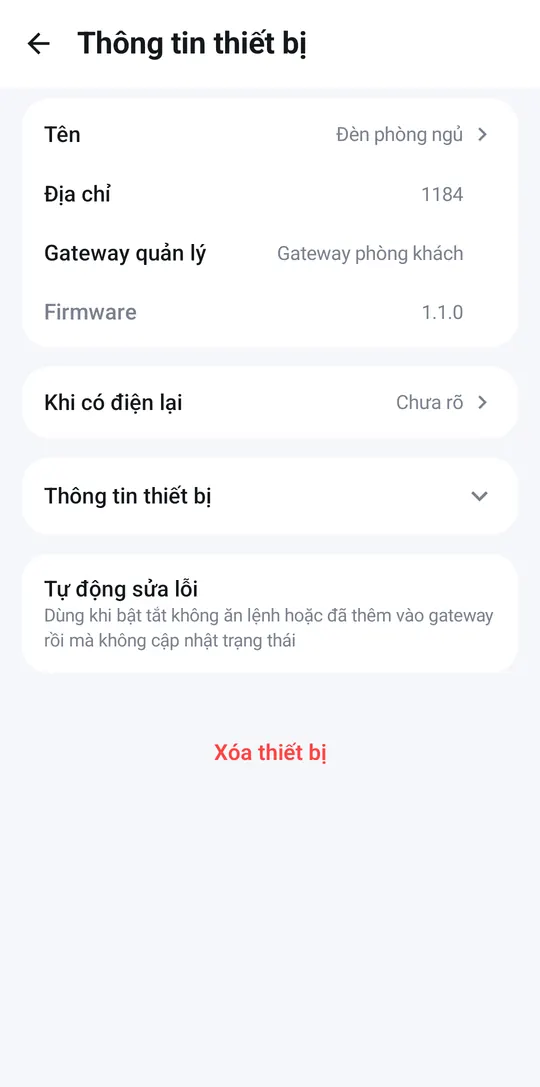
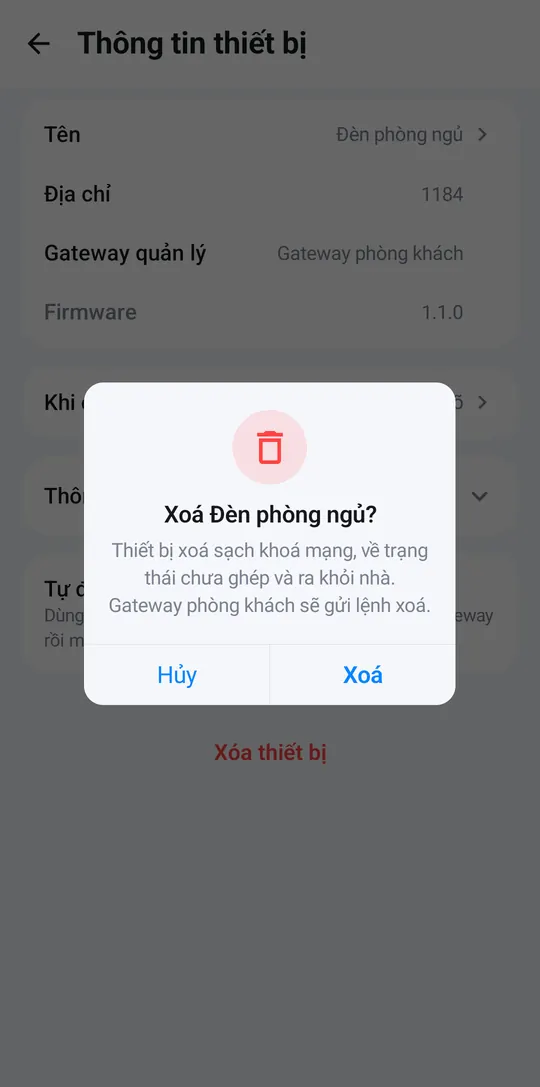
If the device is broken or not responding, the app asks whether to Delete from home anyway. The device then disappears from the app; if it later comes back to life, put it in setup mode before adding it again.
Remove the smart hub
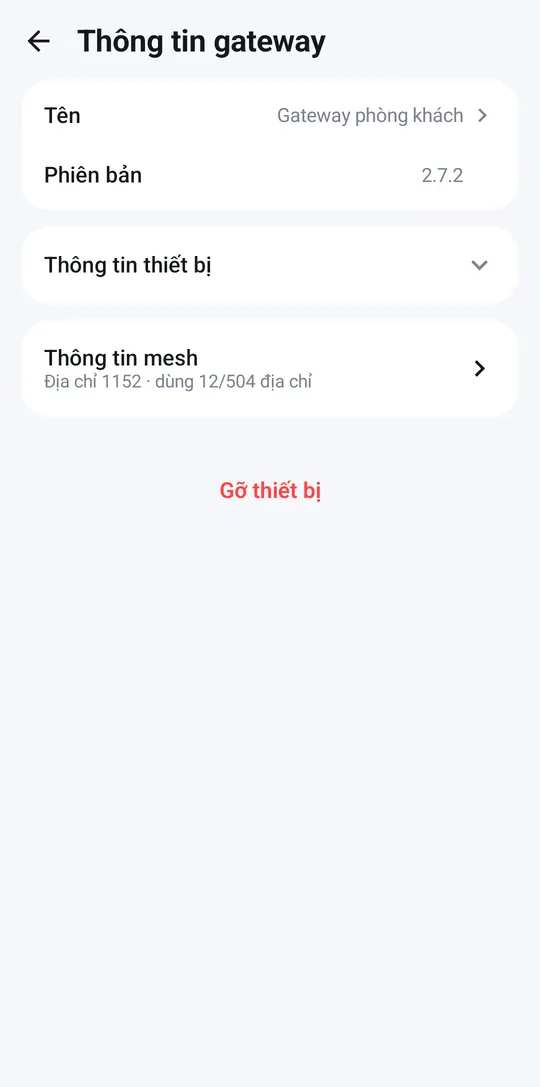
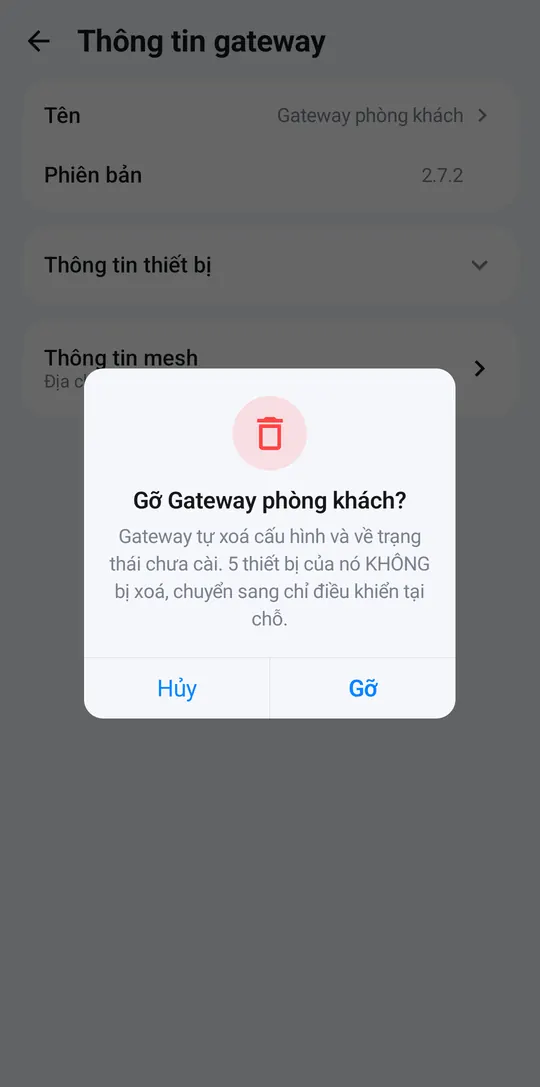
Open the hub → ⋮ (Gateway info) → Remove device → Remove. The hub is reset to factory state. Its lights and switches are not deleted — you can still control them from your phone at home. To hand them over to another hub, use Move devices to another gateway before removing.
Remove Smart IR or a Wi-Fi plug
The device is reset to factory state. For Smart IR, the AC / TV / fan added to it are deleted too, including learned buttons.
Delete a home
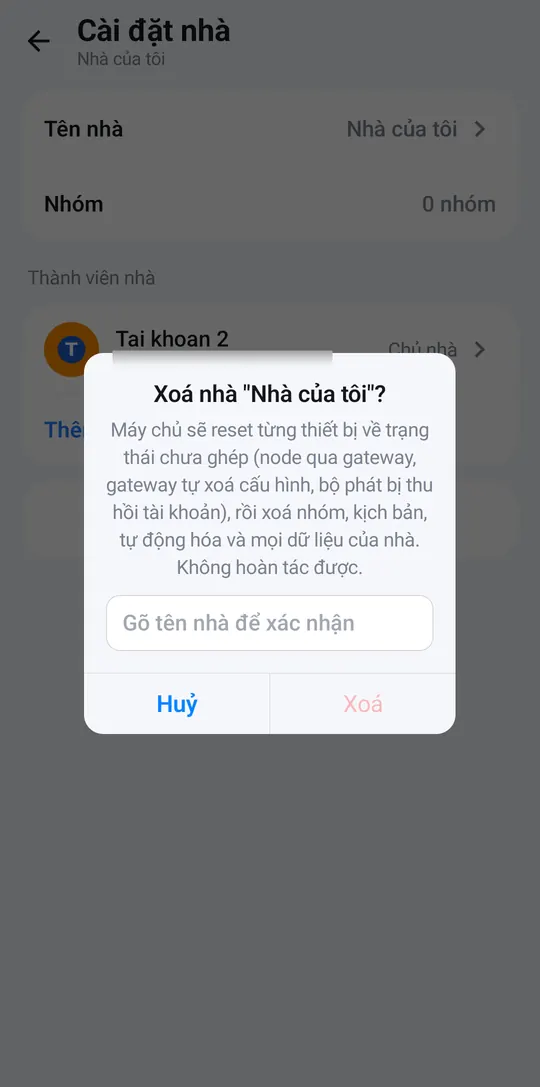
Owner only: Me → Manage homes → > (Home settings) → Delete home, then type the home’s name to confirm. Every device is reset; the home’s groups, Scenes and automations are deleted.
Delete your account
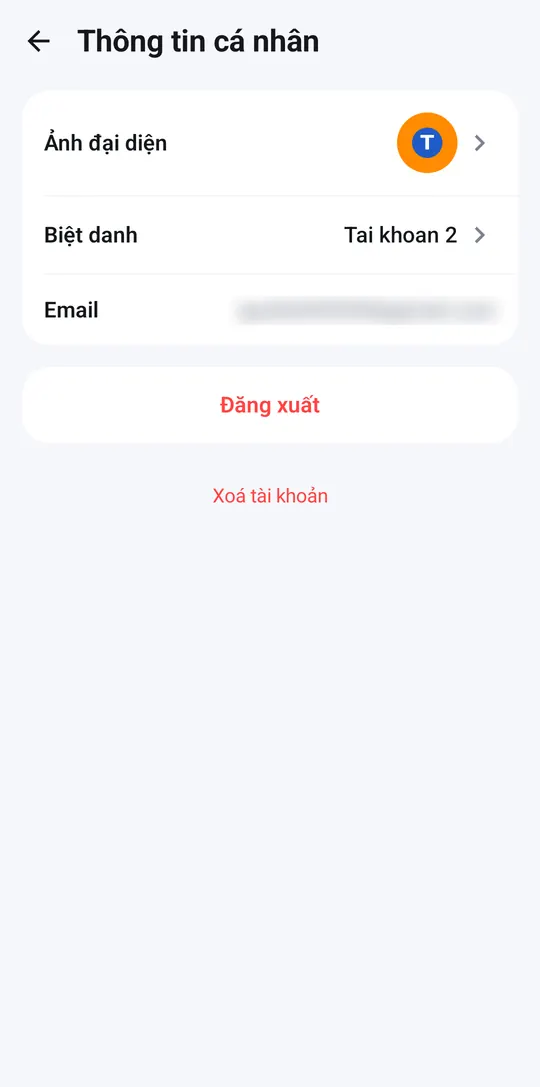
Me → tap your name / photo → Personal info → Delete account, and enter your password to confirm. Homes where you are the only member are deleted too; in shared homes you simply leave. This cannot be undone.