
Add devices to the app: the common steps
Put the device in setup mode, pick it from the list, name it and assign it to the smart hub. How to reset each type, with screenshots.
Updated:
Every Halu Home device is added to the app the same way. This page covers the common steps; each device type also has its own guide with full screenshots (see the end of this page).
Screenshots show the app in Vietnamese. The English app has the same screens, with the buttons in the same places.
Put the device in setup mode
New devices straight out of the box are usually already in setup mode — just power them on. If a device was used in another home, or the app can’t find it:
| Device | How to put it in setup mode |
|---|---|
| Lights, light drivers, LED strips | Switch the light’s power off and on 12 times in a row: on for about 1 second, off for more than 5 seconds each time. |
| Switches, scene switches | Press and hold all keys together until the indicator blinks quickly, release, then press and hold again until it blinks slowly. |
| Smart hub, Smart IR, temperature sensor | Hold the button on the device for more than 5 seconds until its light blinks. |
| Wi-Fi plug | Hold the button on the plug for 5 seconds (the light blinks slowly, then quickly). |
Steps
-
On Home, tap + (or Add now when your home has no devices yet) to open Add device.
-
The app finds devices waiting nearby and shows them with a picture. Tap the one you want to add and keep your phone close until it finishes.
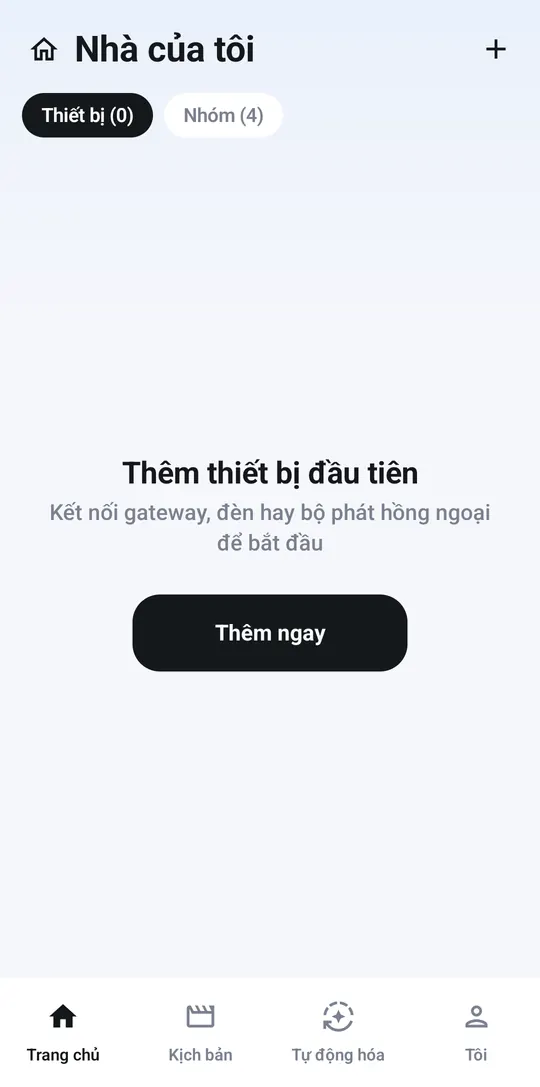
No devices yet: tap Add now 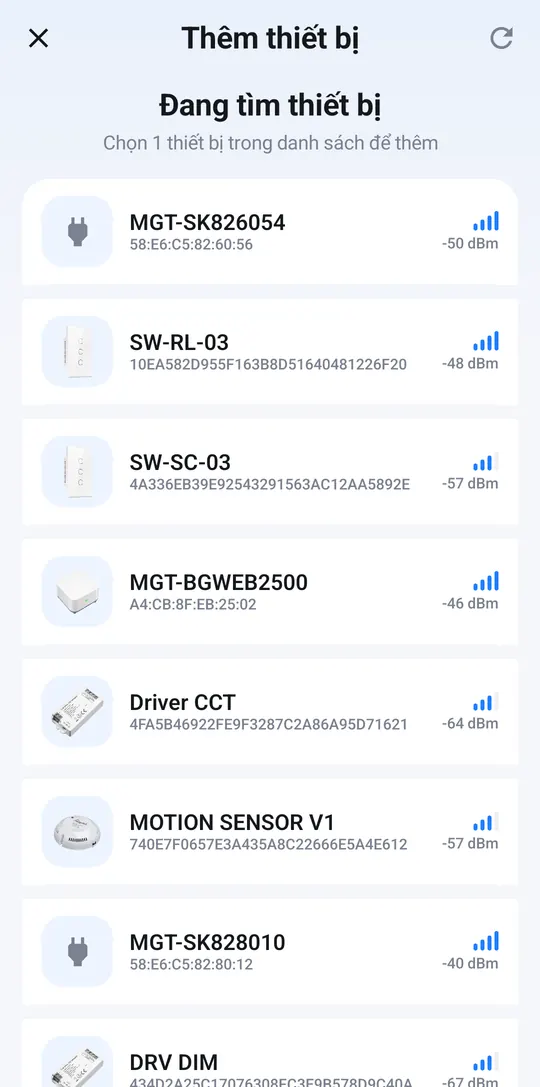
Tap the device you want to add -
The smart hub, Smart IR and Wi-Fi plugs ask for your home Wi-Fi: pick the network, enter the password, tap Set up Wi-Fi.
-
When the app shows Paired:
- Tap ✎ next to Device name to give it a clear name, e.g. “Living room light”.
- Lights, switches and sensors also have a Gateway line. If it says “Not set — offline control only”, tap Change and pick your home’s smart hub so you can control the device while away. Without a hub, you can still control it from your phone at home.
-
Tap Done to open the device, or Pair more to add another.
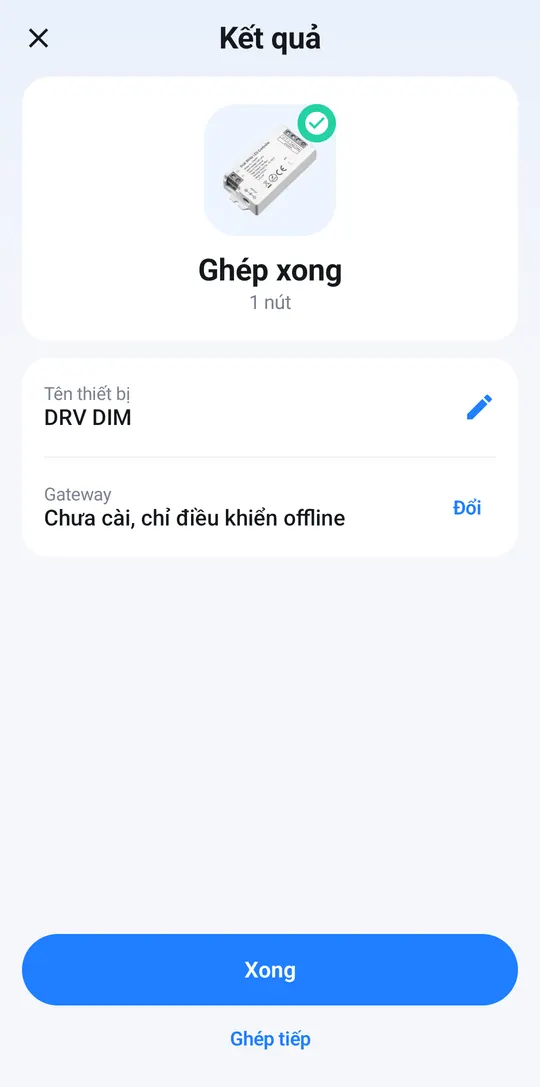
Paired: name it, tap Change on the Gateway line 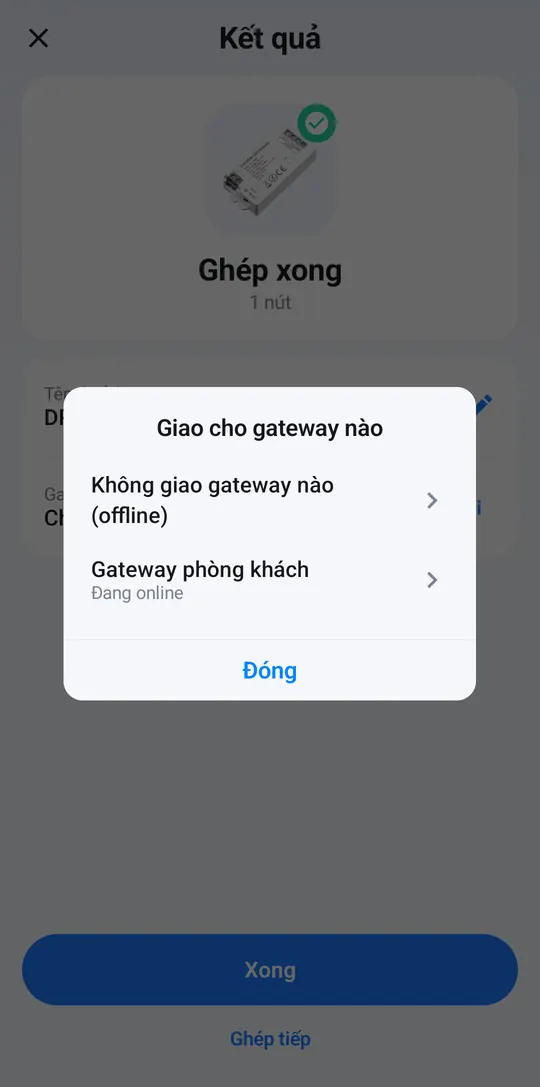
Pick the hub that is online
If the app shows Stopped partway: move closer to the device and tap Try again.
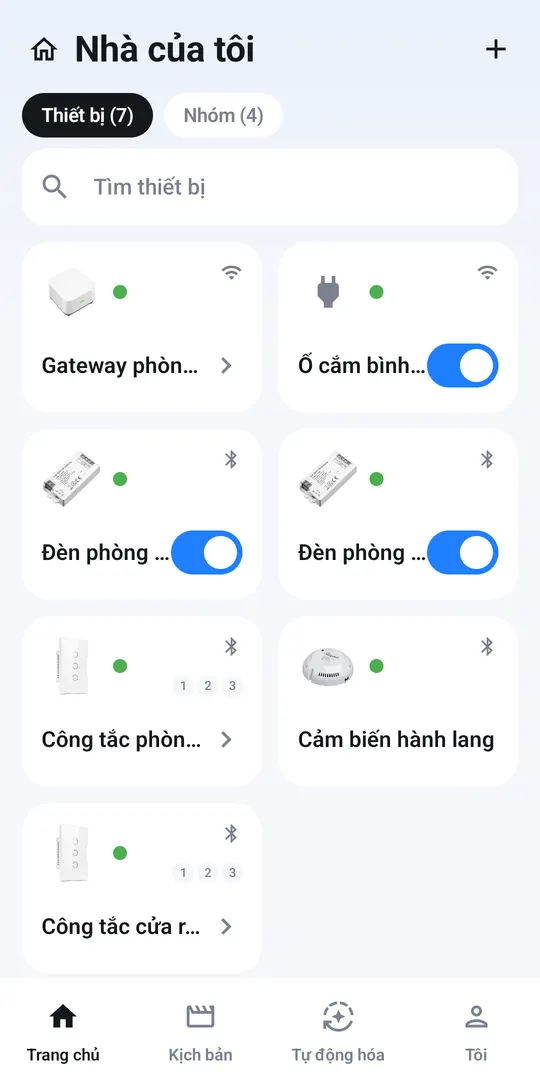
Once added, the device appears on Home. A green dot means it’s connected; the Wi-Fi or Bluetooth icon in the corner shows how it talks to the app.
Device far from your phone but close to the smart hub? Open the hub’s page → + → Device → Scan for new devices to let the hub find and add it.
Guides for each device
- Smart hub (gateway)
- Smart lights: light drivers, LED strips
- Smart switches
- Scene switches
- Motion sensor
- Wi-Fi plug with energy meter
- Smart IR: AC, TV, fan
Can’t add a device?
- The device isn’t in the list: repeat setup mode, check that Bluetooth is on, then tap the rescan icon at the top. At the bottom of Add device, Still can’t see your device? lets you pick your model for specific instructions.
- The app says your account isn’t allowed to add devices → ask the home owner to give you “add & delete” permission.
- The app shows Device already in your home → it was added before; only tap Pair anyway if you really want to add it again.