Scene switches: add to the app and assign a Scene to each button
Add a scene switch, create Scenes like Coming home or Bedtime, then assign one to each button so a single press sets a whole set of devices.
Updated:
Each button on a scene switch runs a Scene — e.g. “Coming home” turns on the living room and bedroom lights at once. Anyone at home can press it, no phone needed, and it works without Internet.
Screenshots show the app in Vietnamese. The English app has the same screens, with the buttons in the same places.
Put the switch in setup mode
Newly installed switches are usually ready. If the app can’t find it: press and hold all keys together until the indicator blinks quickly, release, then press and hold again until it blinks slowly.
1. Add the switch to the app
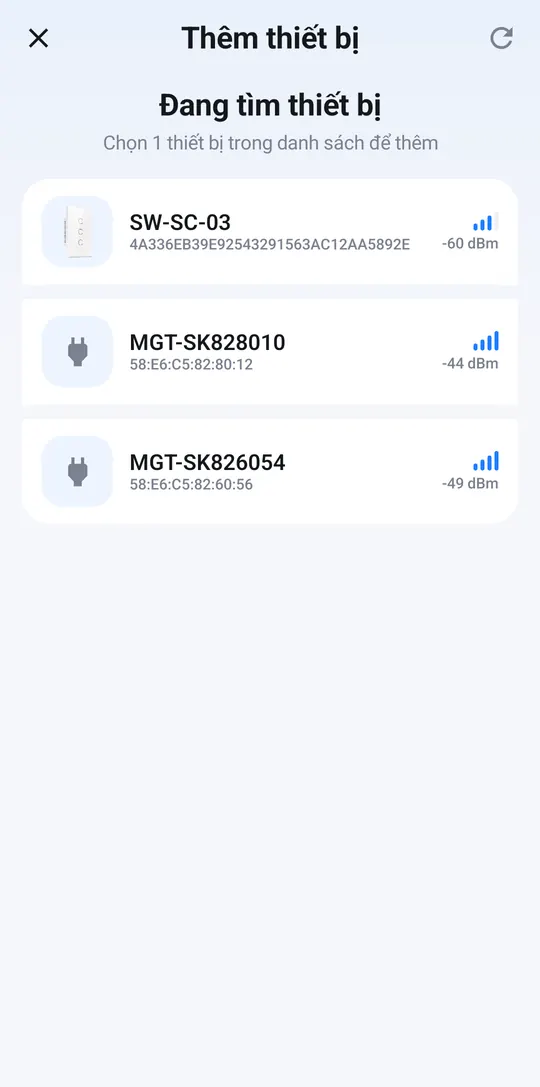
- Home → +, tap the switch in the list and keep your phone close.
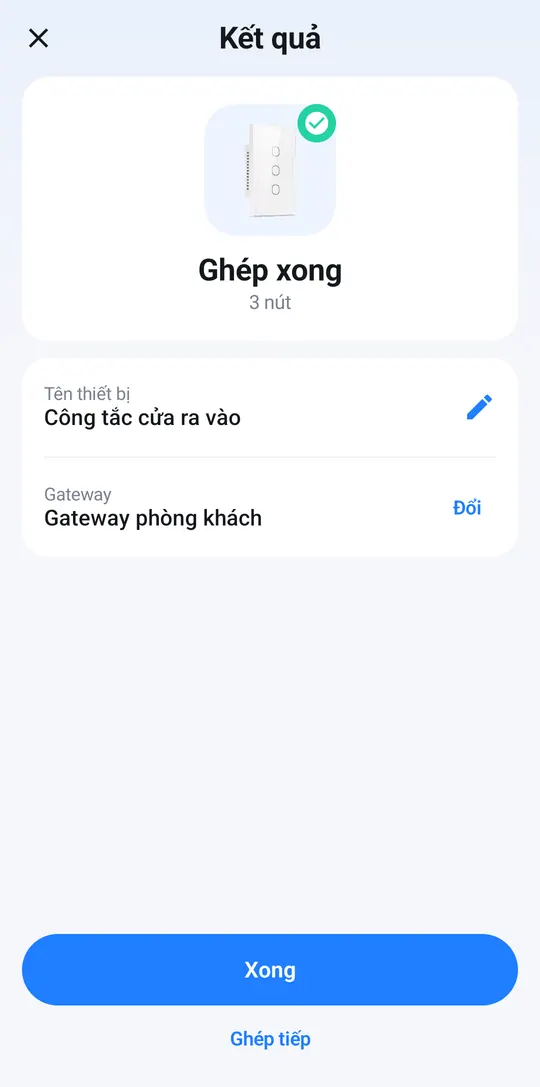
- When the app shows Paired: tap ✎ and name it after its location, e.g. “Front door switch”. On the Gateway line, tap Change and pick your home’s smart hub. Tap Done.
2. Create a Scene (if you don’t have one)
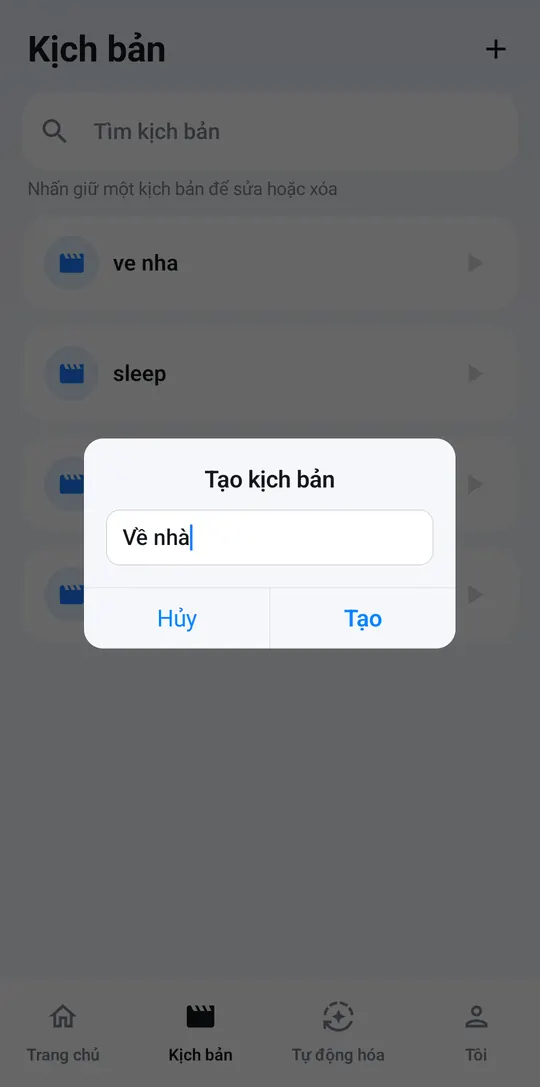
- Tap Scenes in the bottom bar, then +. Enter a name, e.g. “Coming home”, and tap Create.
- Under Device states, tap + (Add Bluetooth light) and pick the lights to include.
- Tap each light, set on/off and brightness the way you want them when the Scene runs, then tap Save.
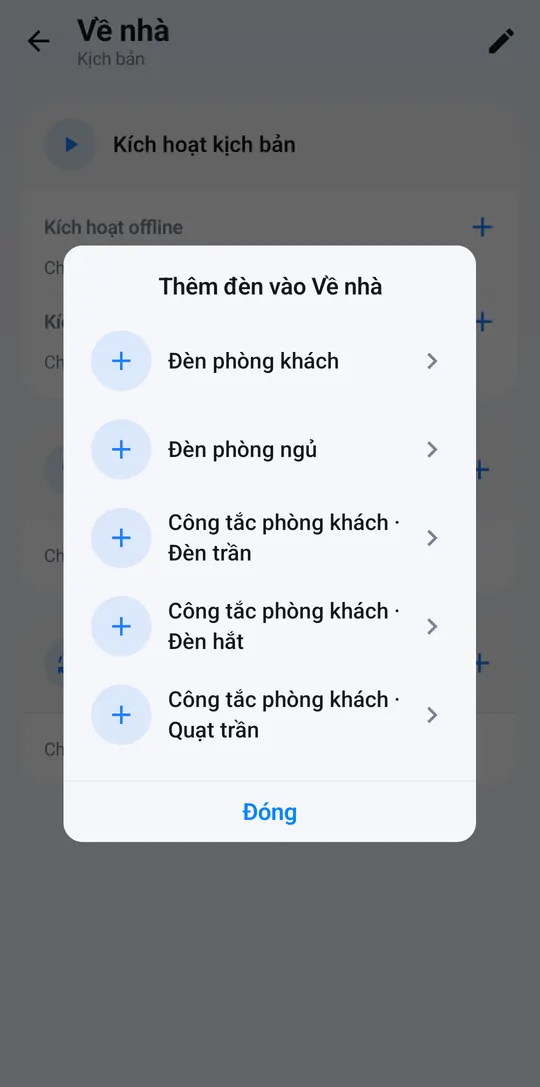
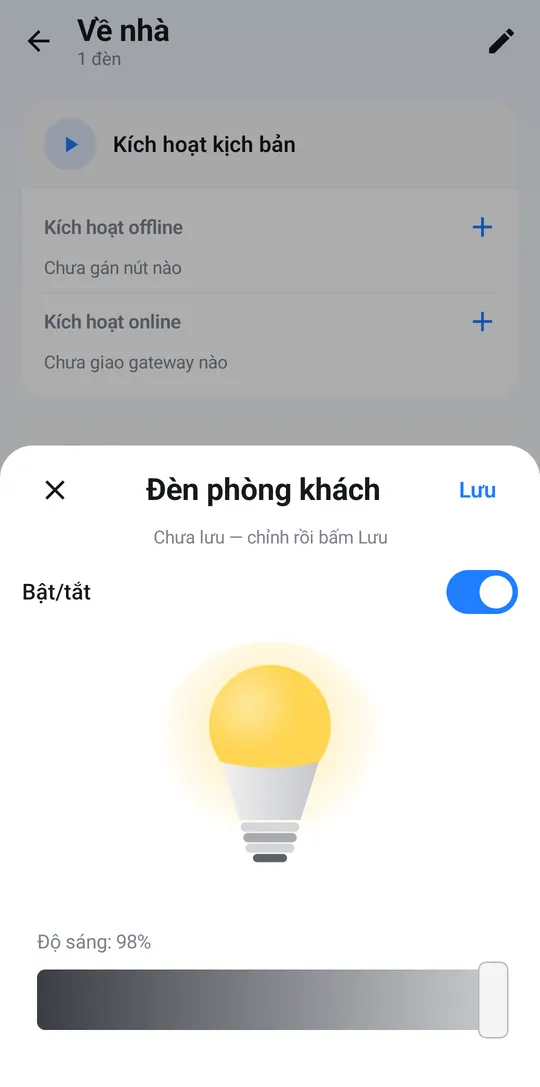
More about Scenes: Create and run Scenes.
3. Assign a Scene to a button
- Open the scene switch from Home.
- Press and hold the button you want to use, choose Assign to scene, then pick the Scene you created.
- The button’s line now shows the Scene’s name. Tap ▶ on the right to try it from the app.
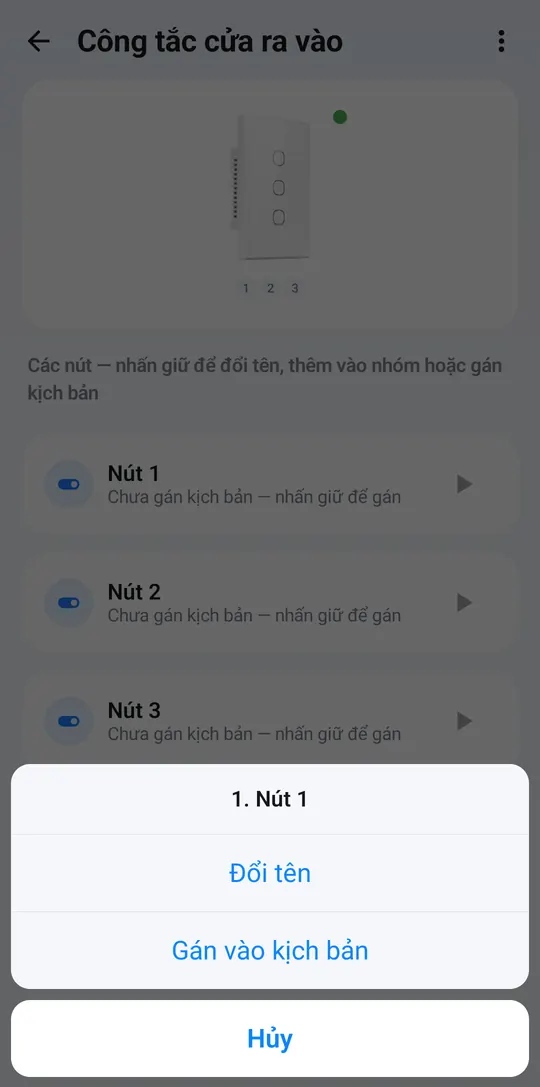
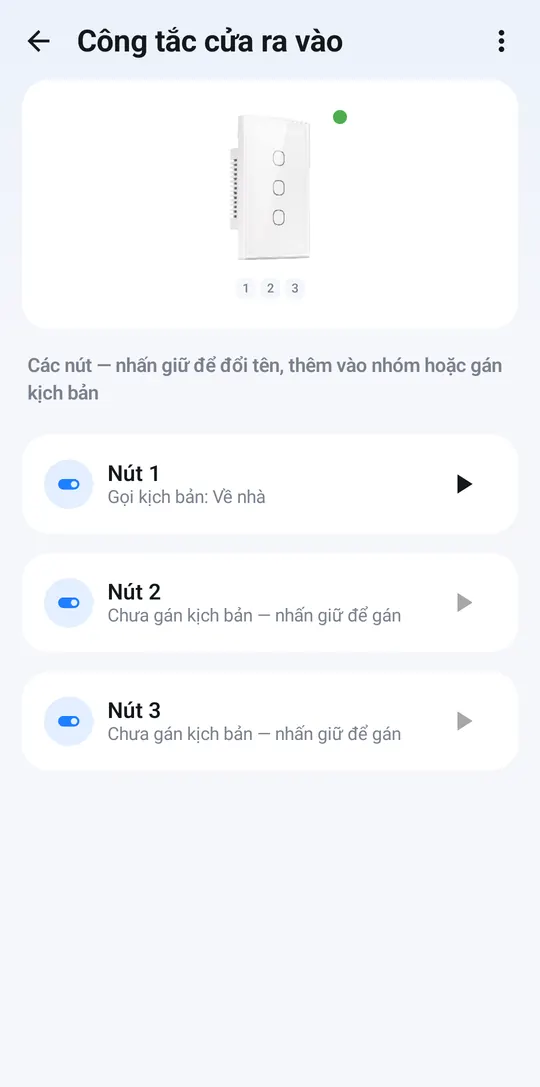
Now press button 1 on the wall switch and the lights in the Scene go to exactly the saved state.
Check it in the Scene
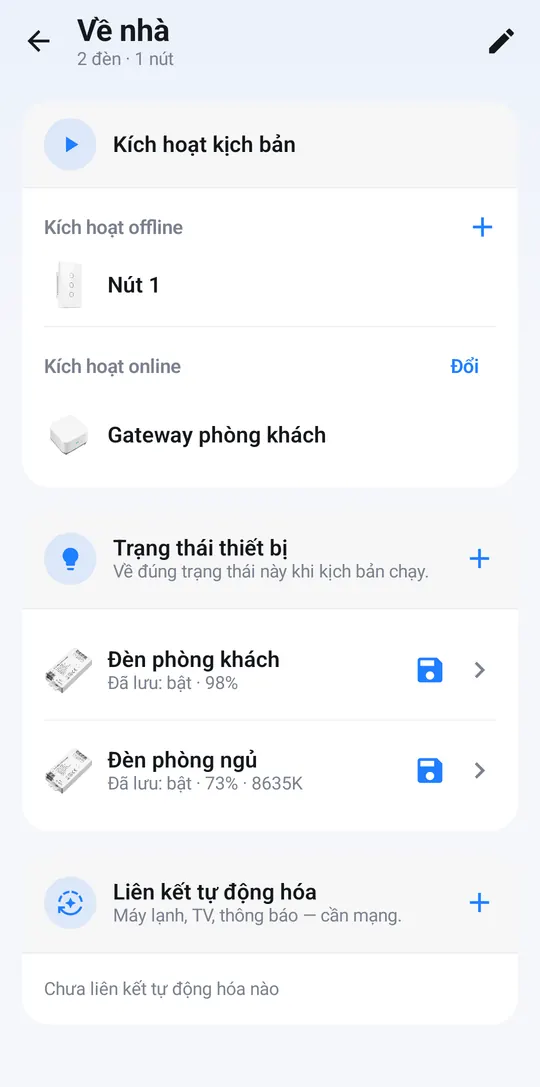
Open the Scene again (press and hold it → Edit scene) to see:
- Offline activation: the switch buttons that run this Scene. They work even without Internet.
- Online activation: pick the smart hub to run the Scene from the app while away and use it in automations.