
Smart lights: add to the app, switch on and off, dim
Add light drivers and LED strips to the app, assign them to the smart hub, adjust brightness and white colour — with step-by-step screenshots.
Updated:
This guide covers every Halu Home light: dimmable drivers, tunable-white (CCT) drivers, 24 V / 220 V LED strips, the 0–10 V light controller and the colour drivers. They are all added the same way; only the control page differs.
Screenshots show the app in Vietnamese. The English app has the same screens, with the buttons in the same places.
Put the light in setup mode
Newly installed lights are usually ready. If the light was used in another home or the app can’t find it: switch its power off and on 12 times in a row — on for about 1 second, off for more than 5 seconds each time.
Add the light to the app
-
Home → + to open Add device, then tap the light in the list.
-
Keep your phone near the light while the app shows Pairing… (a few seconds to half a minute).
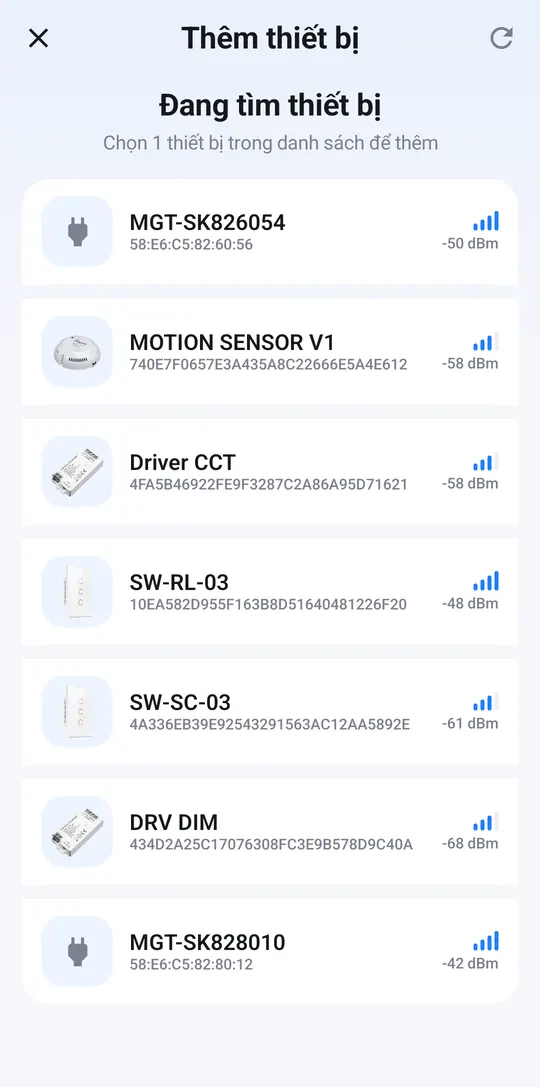
Tap the light in the list 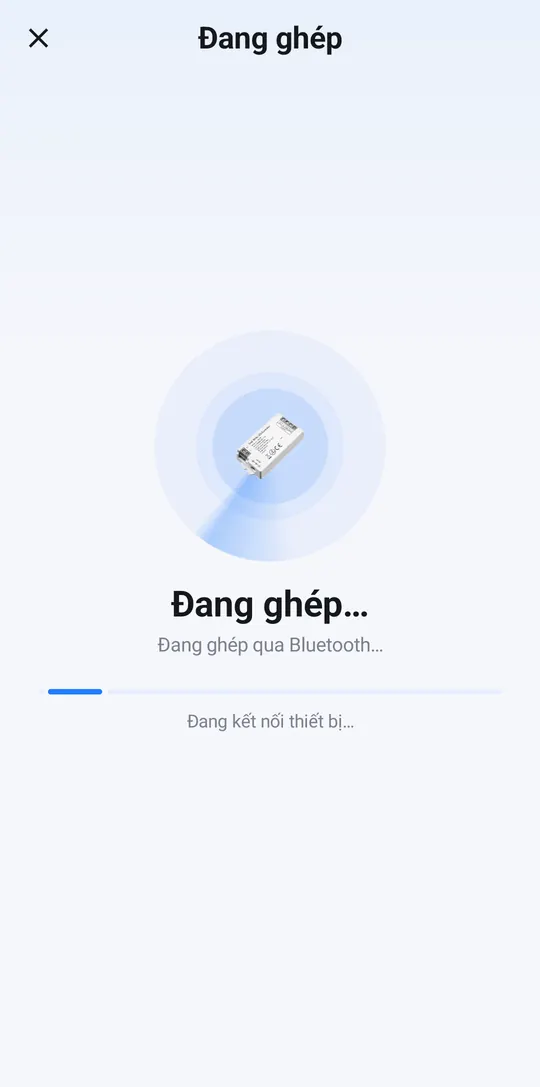
Keep your phone close -
The app shows Paired. On the Gateway line, tap Change and pick your home’s smart hub (marked Online) so you can control the light while away.
-
Tap ✎ next to Device name, name it after its location, e.g. “Living room light”, tap Save, then tap Done.
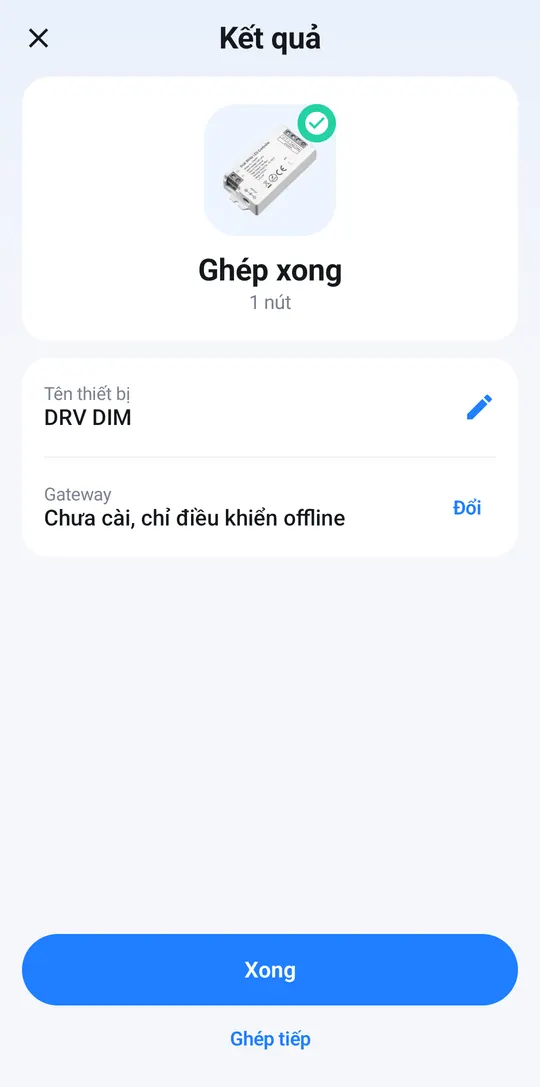
Paired: tap Change on the Gateway line 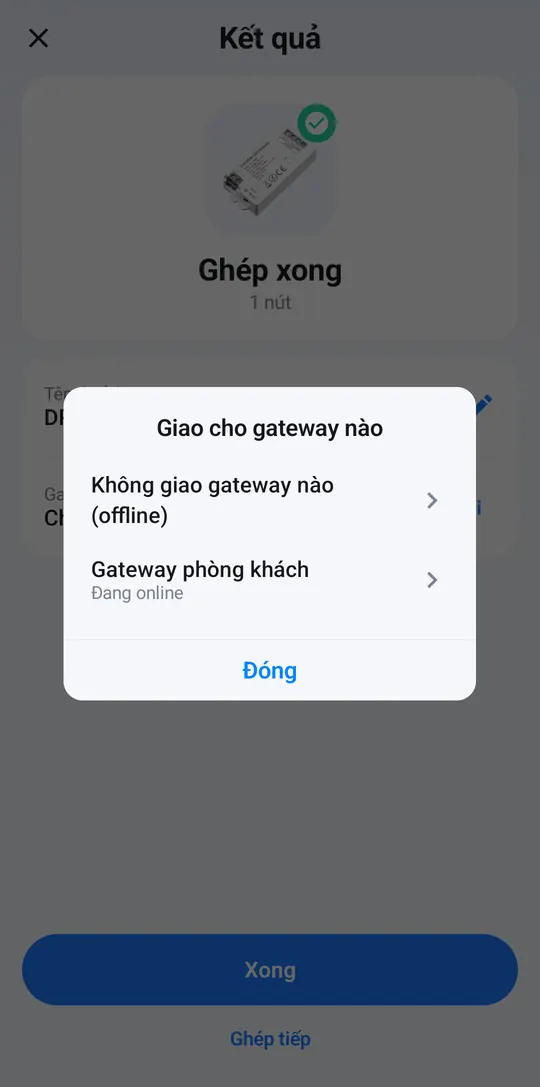
Pick the smart hub 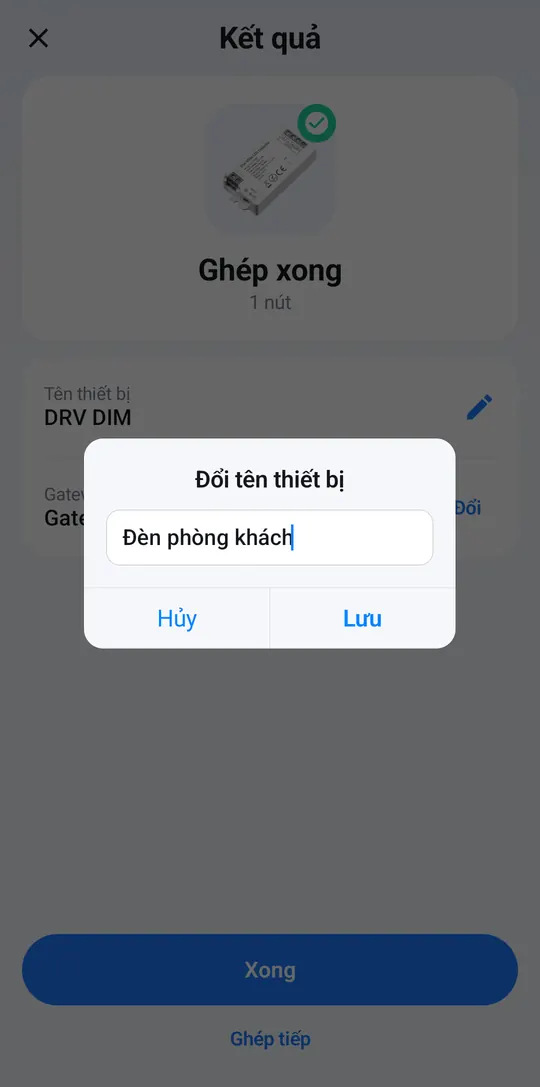
Name it after its location
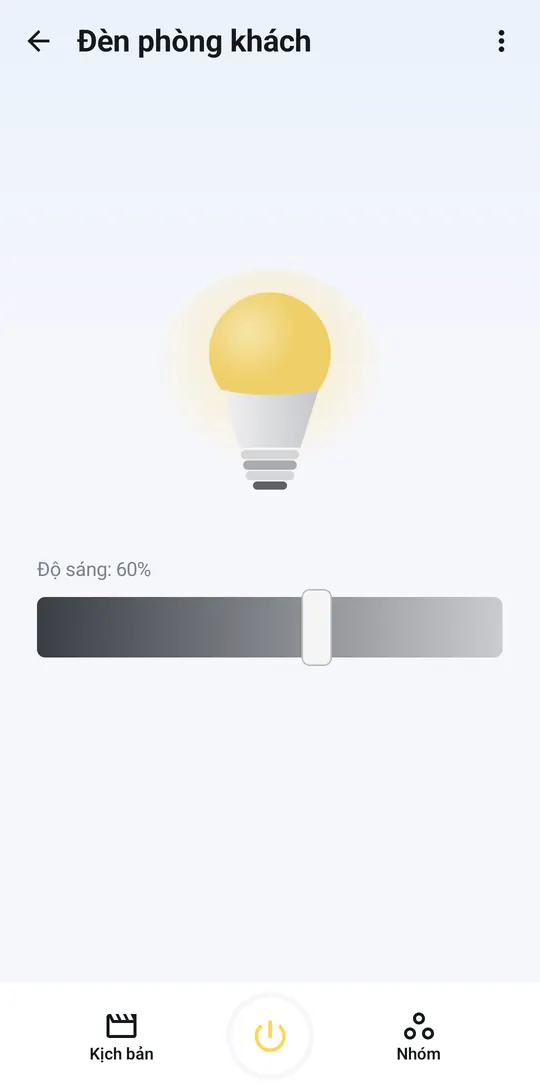
Switch on and off, adjust brightness
Open the light from Home:
- Drag the Brightness bar right for brighter, left for dimmer.
- The power button in the middle of the bottom bar switches it on and off. The light’s card on Home also has a quick on/off switch.
- Scenes: see and add the light to scenes. Groups: put the light in a room group.
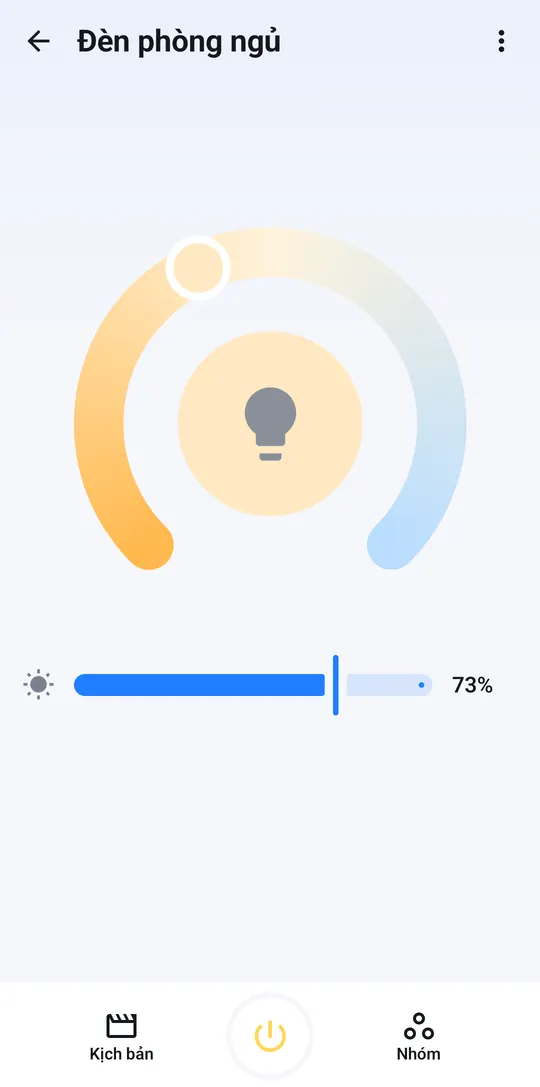
Tunable-white lights (CCT)
CCT lights also have a colour arc: drag the round handle left for warm white, right for cool white. The bar below sets the brightness.
Colour lights (RGB, RGBW, RGBDW)
They are added exactly as above. The control page adds a colour picker; models with a white channel can switch between colour and white light.
Next steps
- Group the lights in a room to switch them together: Control devices and groups.
- One tap for a whole set of lights: Create and run Scenes.
- Lights that turn on when someone is there: Motion sensor.