
Motion sensor: add to the app and adjust settings
Add the motion sensor to the app, see whether someone is there, set how long lights stay on and how bright — with step-by-step screenshots.
Updated:
The motion sensor detects people — even when they sit still — so lights turn on when needed and off when the room is empty.
Screenshots show the app in Vietnamese. The English app has the same screens, with the buttons in the same places.
Add the sensor to the app
- Power the sensor on. Home → +, tap the sensor in the list and keep your phone close.
- When the app shows Paired: tap ✎ and name it after its location, e.g. “Hallway sensor”. On the Gateway line, tap Change and pick your home’s smart hub. Tap Done.
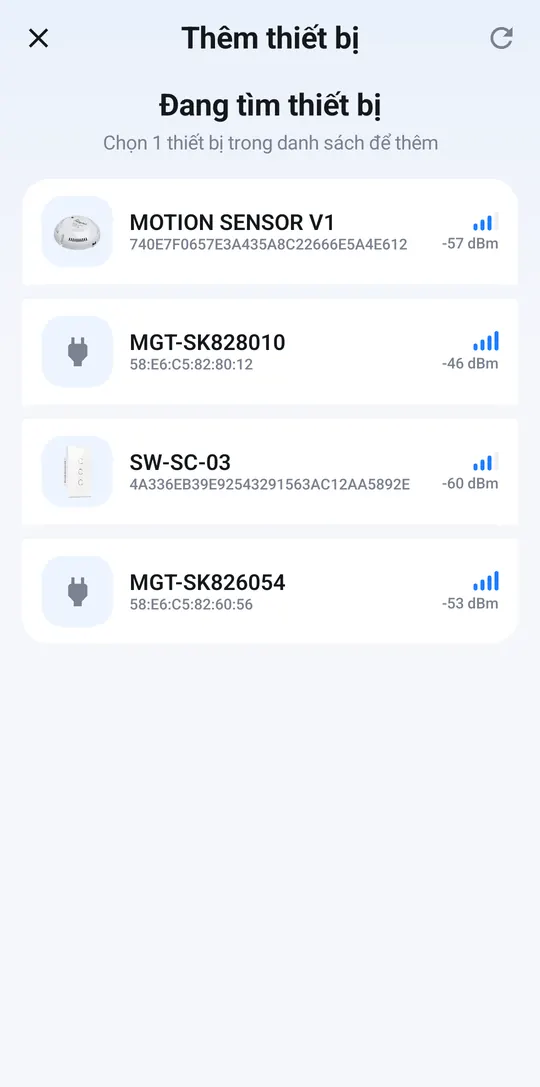
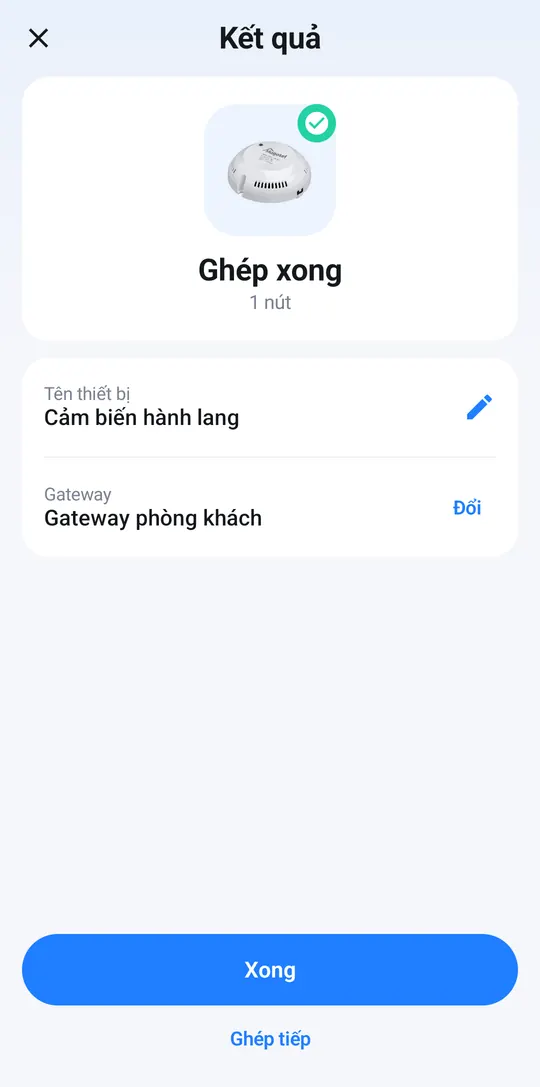
The sensor page
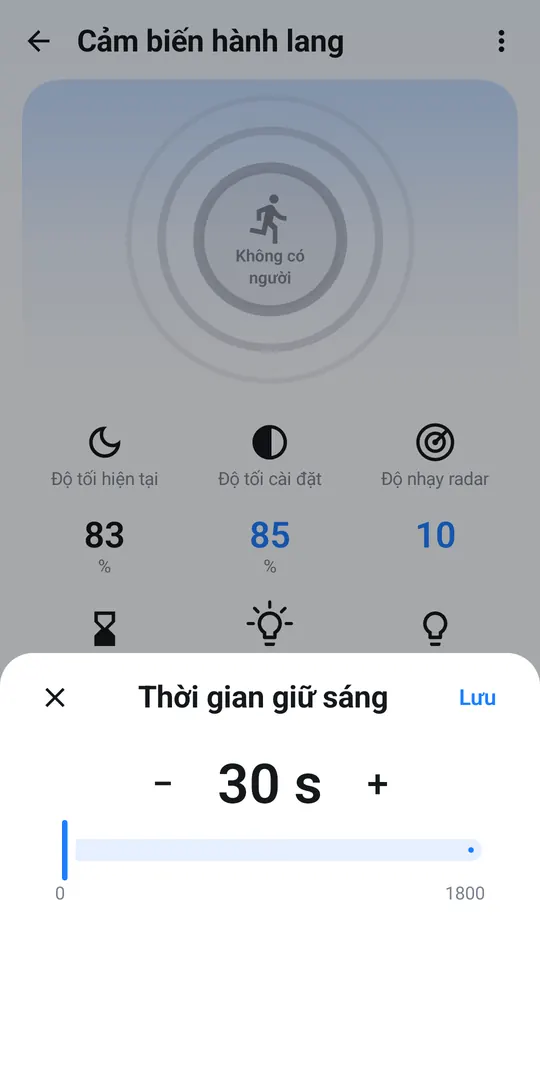
The ring in the middle shows No one (grey) or Motion detected (yellow). When you turn the sensor off, it shows Sensor off.
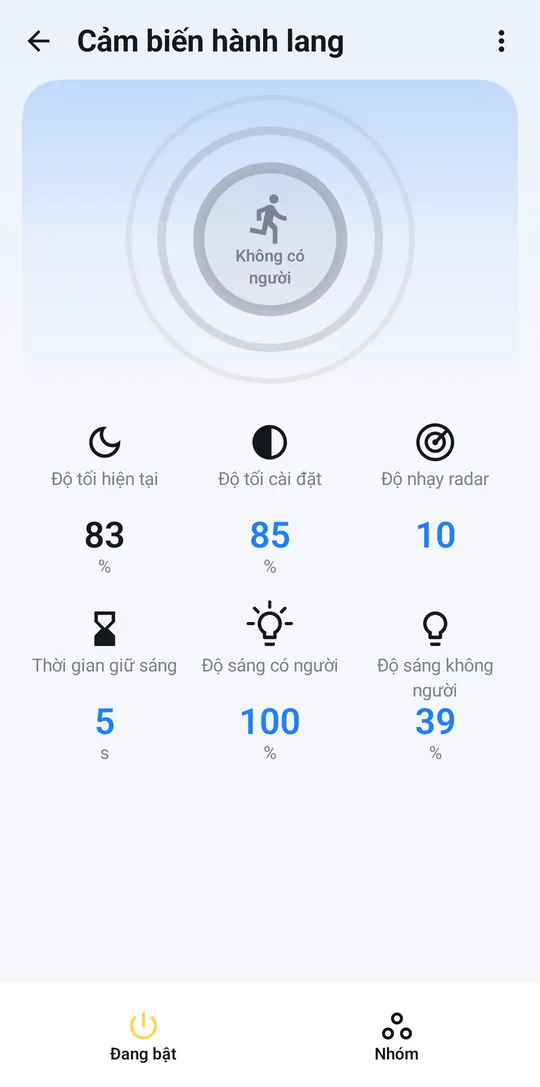
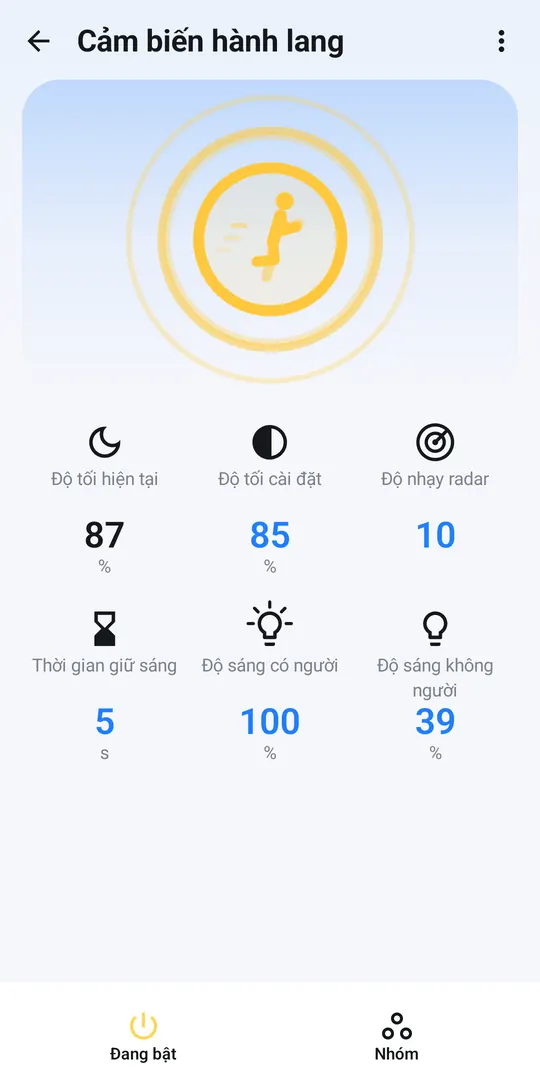
Below it are the settings:
| Setting | What it means |
|---|---|
| Current darkness | How dark the room is right now, as measured by the sensor. |
| Darkness threshold | How dark it must be for the sensor to turn the light on when someone is there. |
| Radar sensitivity | Higher means the sensor reacts to smaller movements. |
| Light hold time | How long the light stays on after the room is empty. |
| Brightness when occupied | Light brightness when someone is there. |
| Brightness when unoccupied | Light brightness when the room is empty (0% means fully off). |
Change a setting
Tap the setting, use − / + or drag the slider, then tap Save. For example, set Light hold time to 30 seconds for a hallway, a few minutes for a bathroom.
The button on the left of the bottom bar turns the sensor on or off — e.g. off when you want the light to stay on.
Only people with full control can change sensor settings; people with control-only permission can still see its status.
Use the sensor in automations
The sensor switches the light by itself using the settings above — no automation needed. In Automations, the sensor can be a Device state changes condition on items such as Current darkness or Offline — e.g. send a notification when the sensor goes offline.