
Install the Halu Home app and create an account
Download the app, sign up with your email, sign in, reset your password and create your first home — step by step, with app screenshots.
Updated:
Screenshots show the app in Vietnamese. The English app has the same screens, with the buttons in the same places.
What you need
- An Android 10 or later phone with Bluetooth. An iPhone version is in development.
- An email address you can check for the verification code.
Create an account
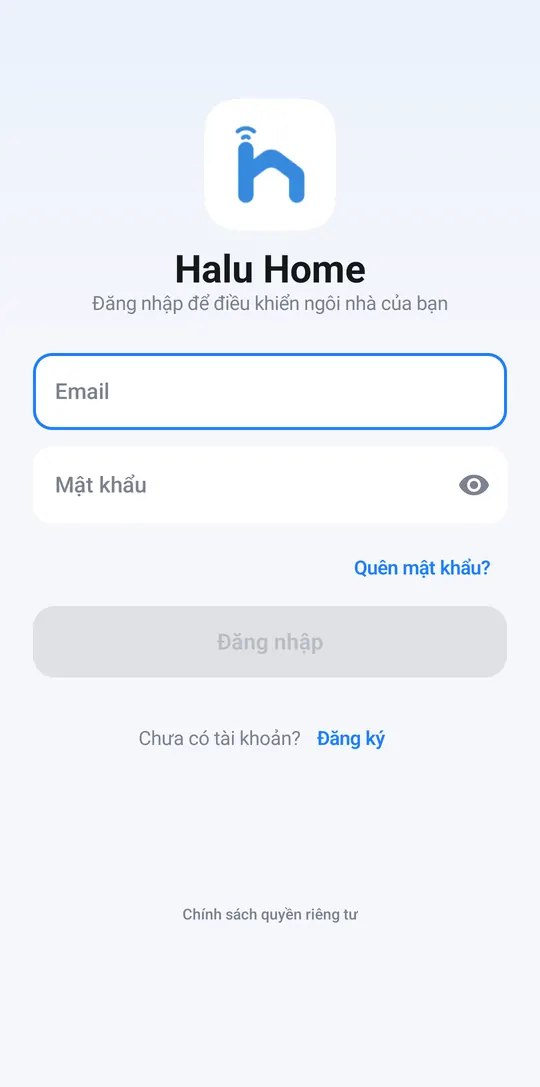
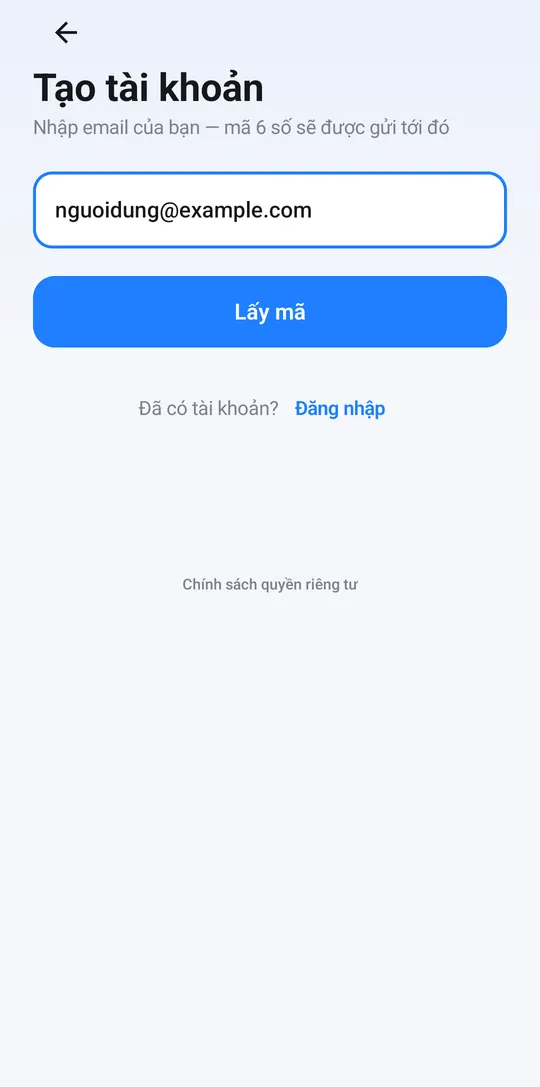
- Open the app and, on the sign-in screen, tap Don’t have an account? → Sign up.
- On Create account, enter your email and tap Get code.
- Check your inbox and type the 6-digit code on the Enter verification code screen. No email? Check your Spam folder, or tap Resend after 60 seconds.
- On Set password, choose a password of at least 6 characters and tap Done. You are signed in right away.
Sign in and forgotten passwords
- Sign in with your Email and Password.
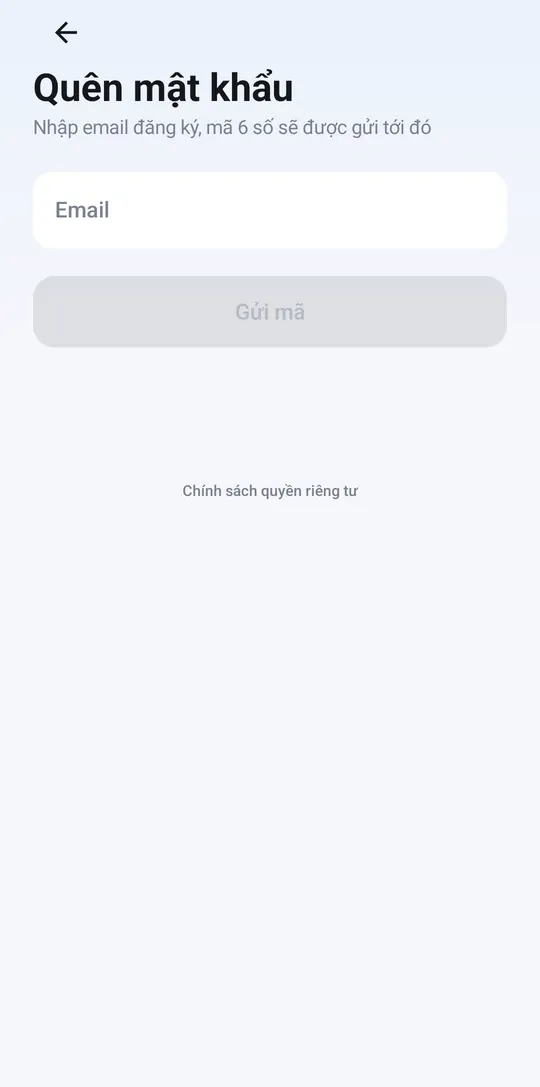
- Forgot your password: tap Forgot password? → enter your email → Send code → enter the 6-digit code and a new password → Change password.
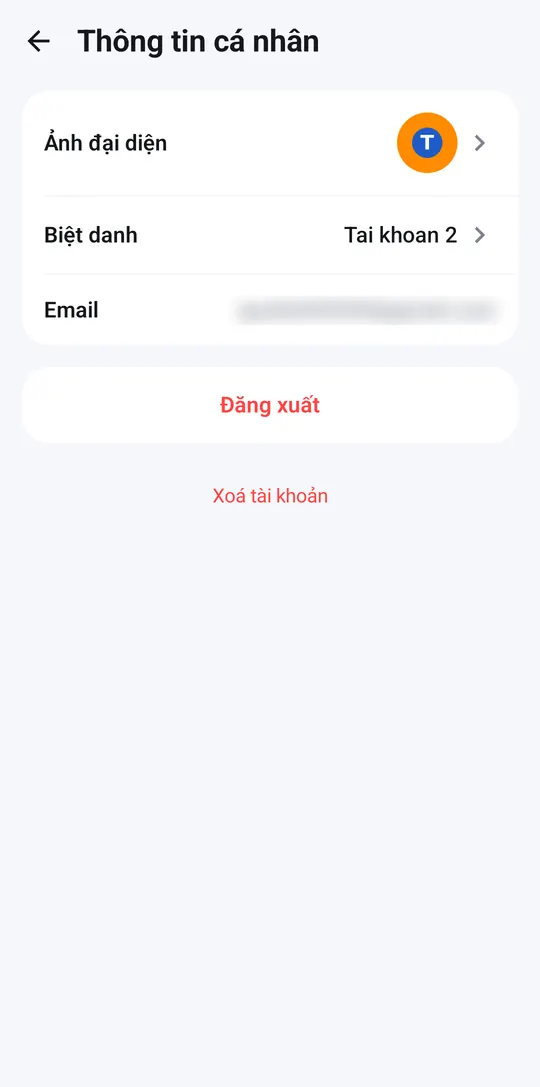
- Sign out: Me → tap your name (Personal info) → Sign out. To change your password, sign out and follow Forgot password? above.
Each account can be signed in on one phone at a time — signing in on a new phone signs the old one out. Give each family member their own account and invite them to your home (see Share with your family).
Allow permissions
- Notifications: so you hear when a device goes offline, an automation runs or you are invited to a home.
- Nearby devices (Bluetooth): the app asks when you add or control nearby devices. On Android 11 and older you also need to turn on Location so the phone can find devices — the app does not track your location.
Create a home
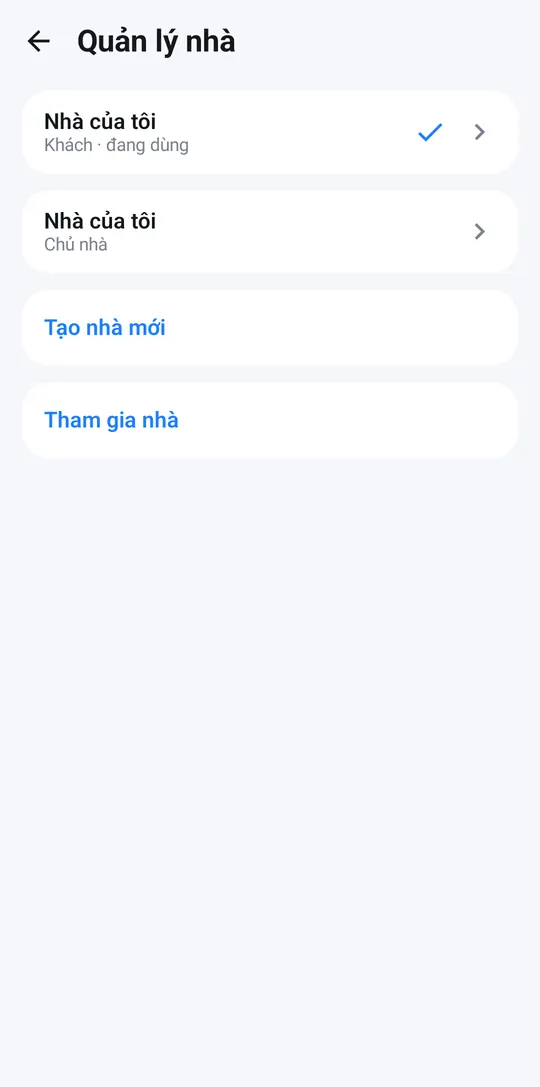
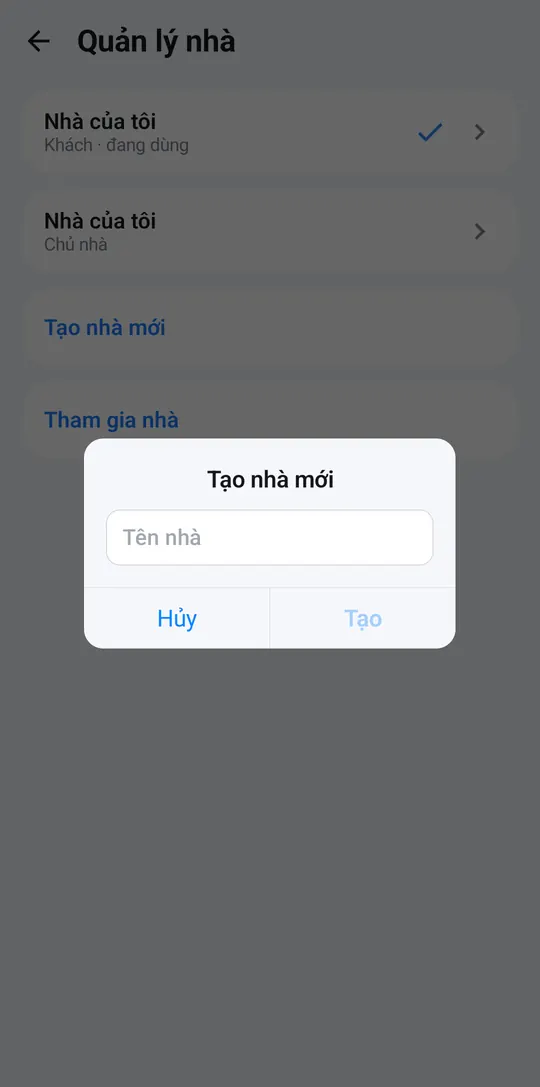
- Go to Me → Manage homes.
- Tap Create new home, enter a Home name and tap Create.
- Have more than one place (home, office…)? Tap a home in Manage homes → Switch to move between them. The home in use has a ✓.
Home owners should check Me → Time zone so schedules run at the right time.
Next: Set up the smart hub.