
Set up the smart hub (gateway)
Plug in the smart hub and connect it to Wi-Fi to control your home while away and run schedules. Step-by-step with app screenshots.
Updated:
The smart hub (called gateway in the app) connects your home devices to the Internet. With it you can control your home while away, schedules and automations run on time, and everyone at home sees which devices are on.
Screenshots show the app in Vietnamese. The English app has the same screens, with the buttons in the same places.
What you need
- The hub plugged in permanently, placed near the middle of your home.
- Your Wi-Fi name and password. The hub uses 2.4 GHz Wi-Fi (almost every modem and router provides it).
- Your phone with Bluetooth on, close to the hub.
Steps
-
On Home, tap +. The Add device screen finds devices waiting to be set up around you. If the app shows Bluetooth permission required, tap Grant permission.
-
Tap the hub in the list (the white square box).
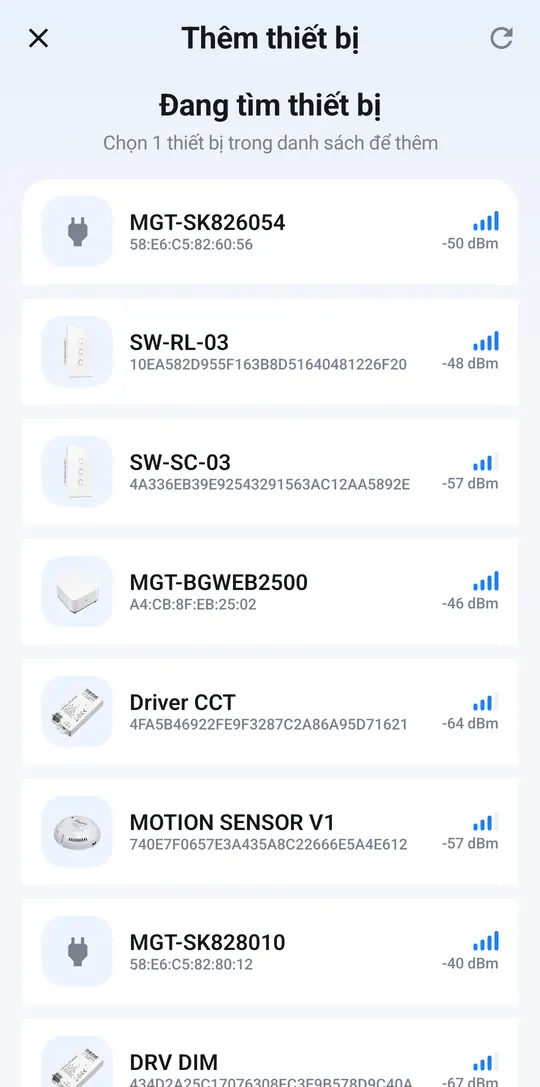
Tap the hub in the list -
On Select Wi-Fi for the device, choose your home Wi-Fi under Wi-Fi network, enter the Wi-Fi password and tap Set up Wi-Fi. A green ✓ marks the usable 2.4 GHz network; a red ✗ marks a 5 GHz network that won’t work.
-
Wait about a minute. Keep the screen on and stay close until it finishes.
-
When the app shows Paired, tap ✎ to give it a clear name (e.g. “Living room gateway”), then tap Done.
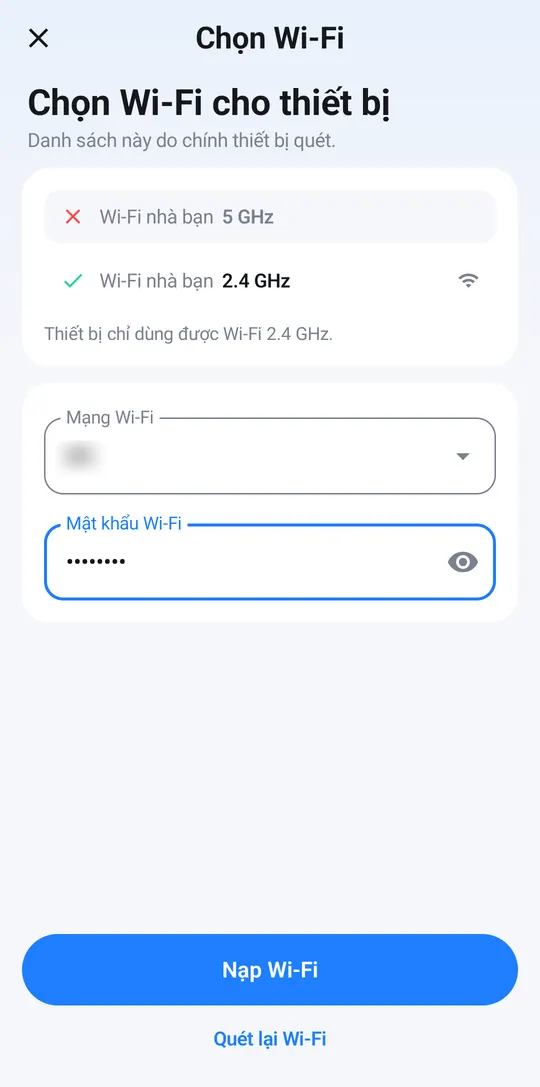
Pick 2.4 GHz Wi-Fi, enter the password, tap Set up Wi-Fi 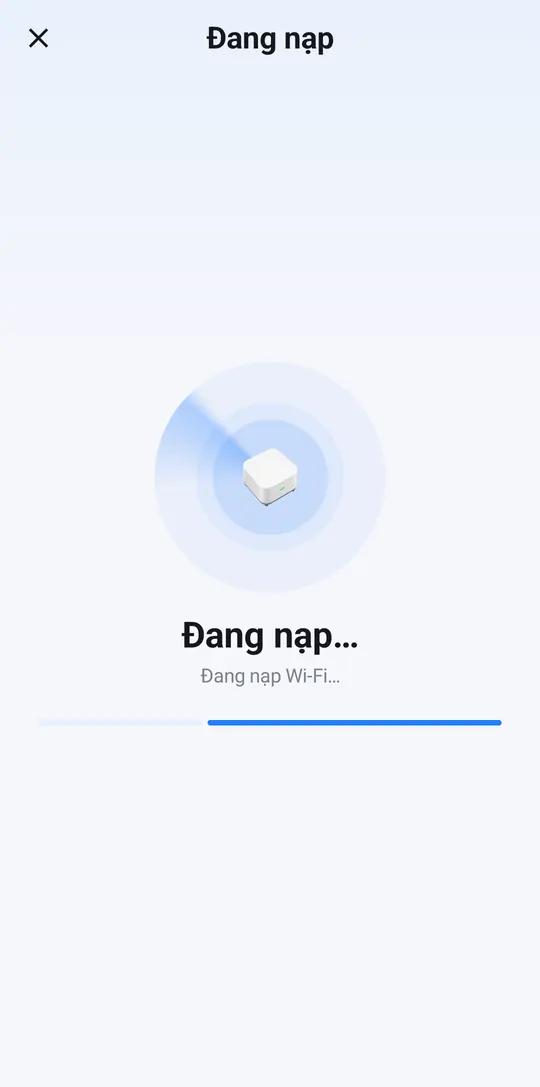
Wait about a minute 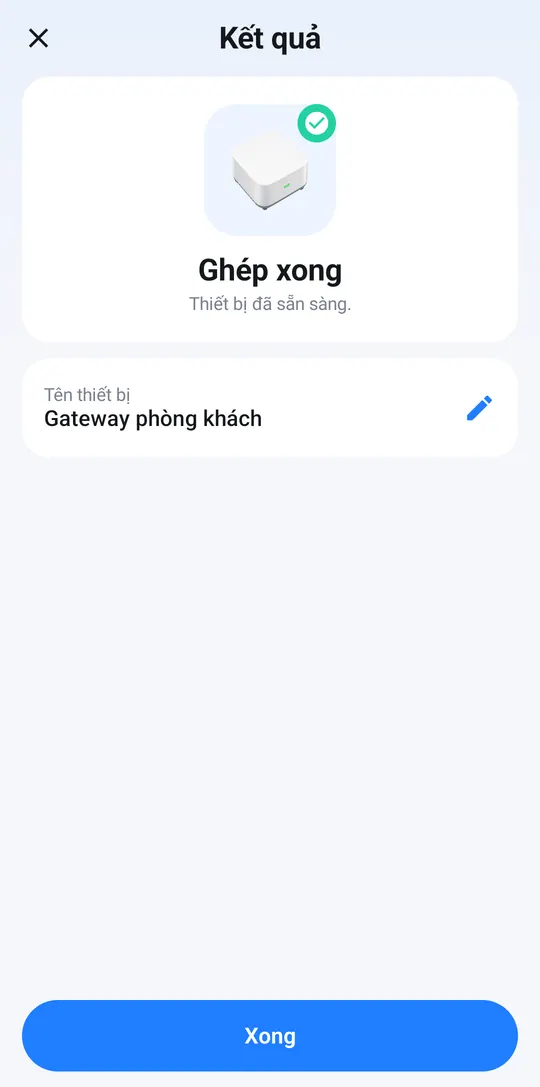
Name it, then tap Done
Can’t see your Wi-Fi in the list? Tap Rescan Wi-Fi, or move closer to your router.
The hub does not appear in the list
- A hub that was set up before stops appearing. Hold the button on the hub for more than 5 seconds until its light blinks, then tap the rescan icon at the top of Add device.
- Make sure Bluetooth is on and the app has permission.
Wi-Fi setup errors
| The app says | What to do |
|---|---|
| Wrong Wi-Fi password | Re-enter the password, minding upper and lower case. |
| The device can’t see this Wi-Fi network (2.4 GHz only) | You picked a 5 GHz network. Choose the 2.4 GHz network name, or ask your provider to enable a separate 2.4 GHz network. |
| Not connected yet | Check that the Wi-Fi network has Internet access, then try again. |
The hub’s page
Open the hub from Home to see:
- A green dot means it’s working, red means it’s offline.
- Assigned devices: the lights, switches and sensors you can control remotely through this hub. Press and hold one to rename it or remove it from the hub.
- The + button at the top: assign devices already in your home, or let the hub itself find new devices that are far from your phone.
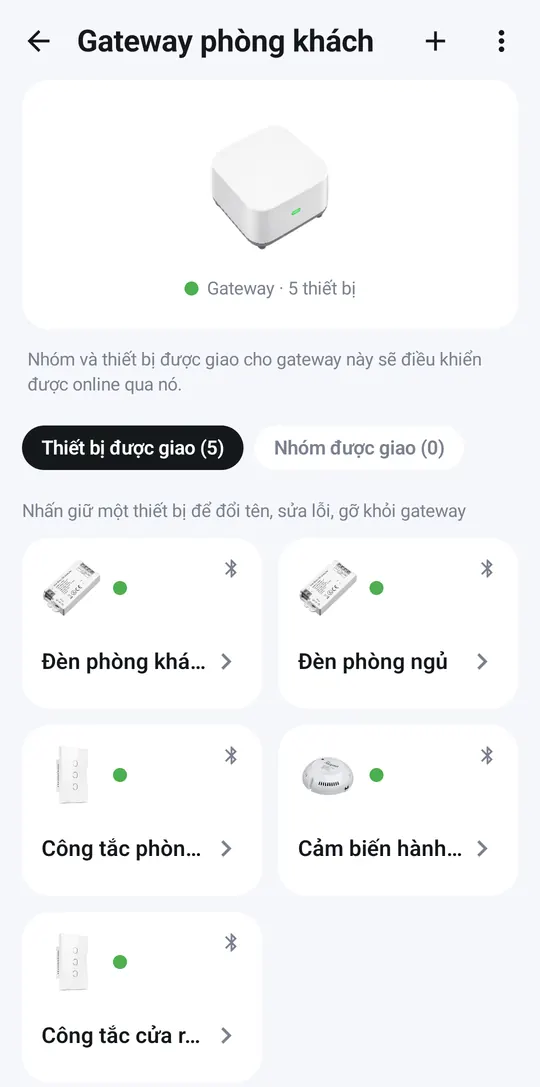
Each hub handles up to 128 devices; large or multi-storey homes can add a second hub.
Next: Add devices to the app.