
Control devices and groups
Switch lights, adjust brightness and color, and group devices by room to switch a whole room with one tap — with screenshots.
Updated:
Screenshots show the app in Vietnamese. The English app has the same screens, with the buttons in the same places.
The Home screen
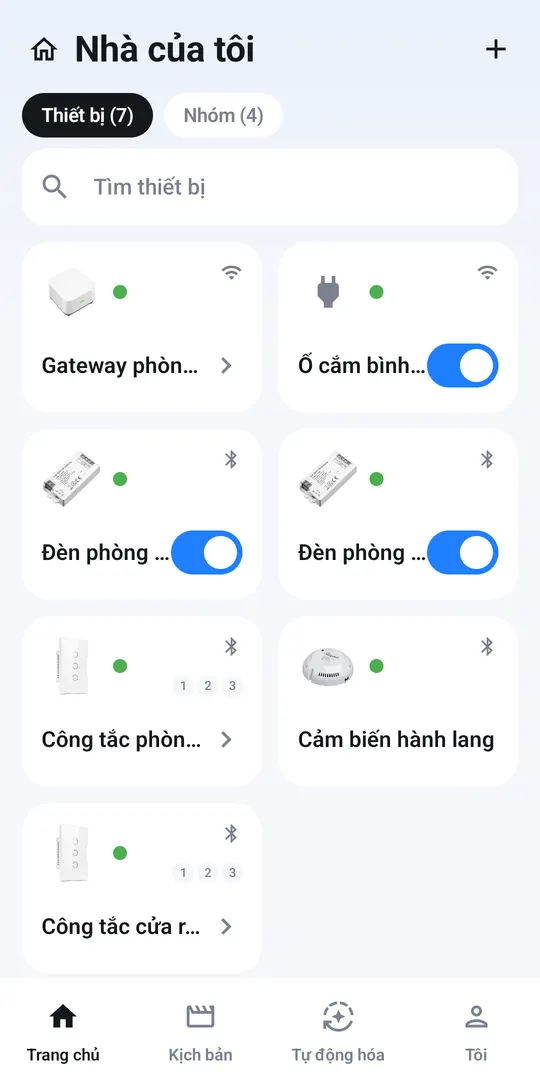
Home has two sections, Devices and Groups. Tap a card to open its controls. Lights and plugs have a quick on/off switch right on the card.
Controlling a device
- Dimmable lights: tap the large bulb or the power button to switch on or off, drag the Brightness slider. Tunable-white lights also have a warm ↔ cool arc. See Smart lights.
- Color lights: choose Colors or White, pick a color on the wheel, adjust brightness; use Effect to let the light change colors by itself.
- Multi-gang switches: tap each button to switch it. See Smart switches.
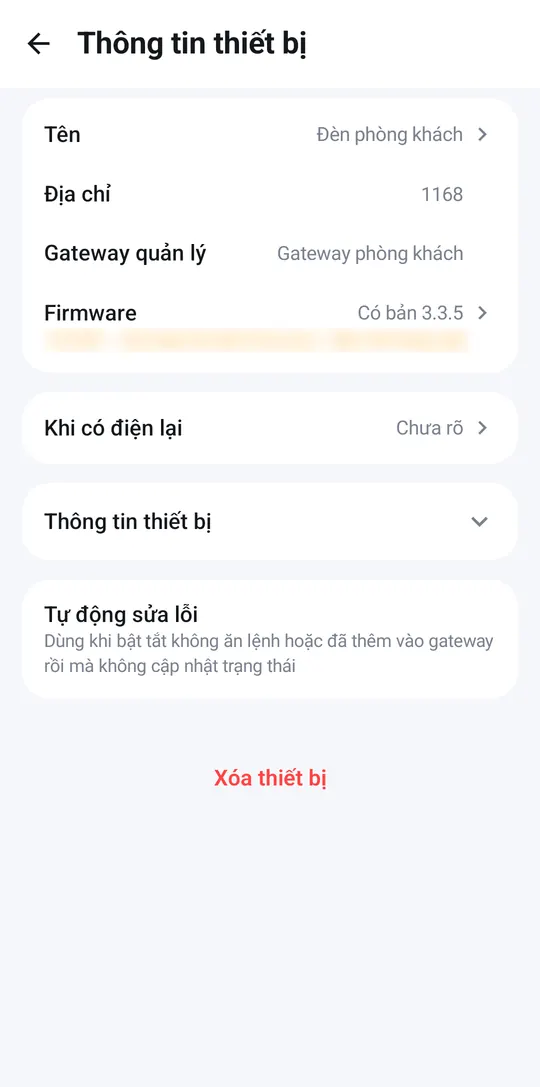
- The ⋮ button opens Device info: rename, see the version, Auto-repair (use it when the device doesn’t respond), Delete device.
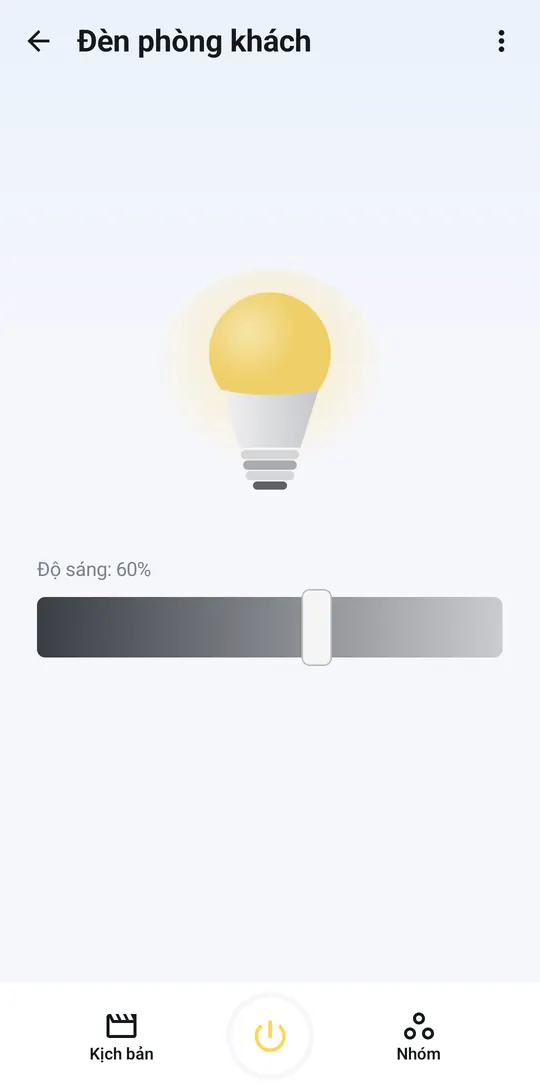
Icons always show the real state
When you tap, the app briefly shows Sending…. The icon only changes once the device has actually switched, so what you see in the app always matches reality. If a command can’t get through, the app tells you why.
Groups — devices by room
-
Home → Groups → +.
-
On New group, enter a Group name (e.g. “Living room”), choose a Background (a color or a room picture) and tap Create.
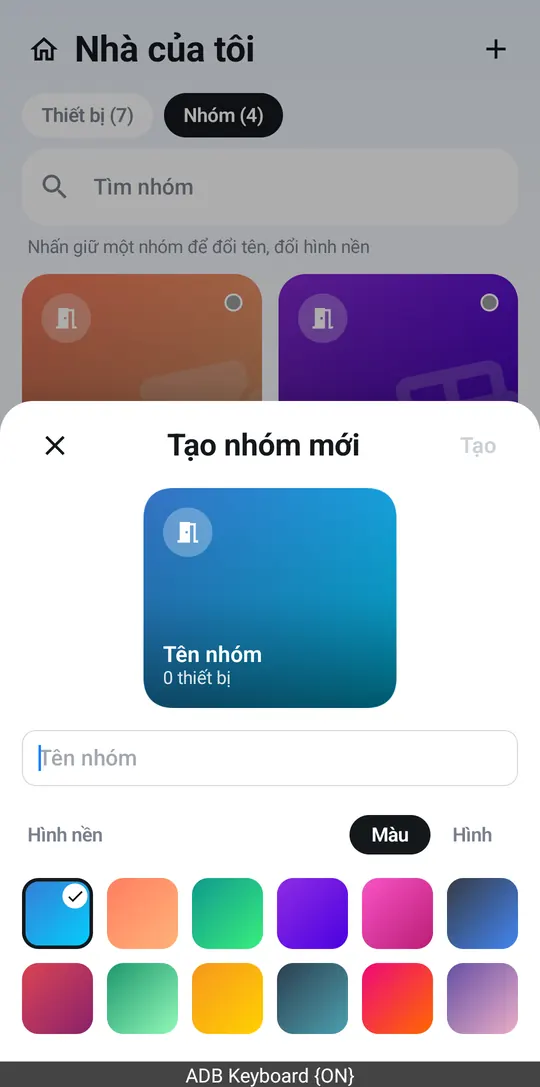
New group 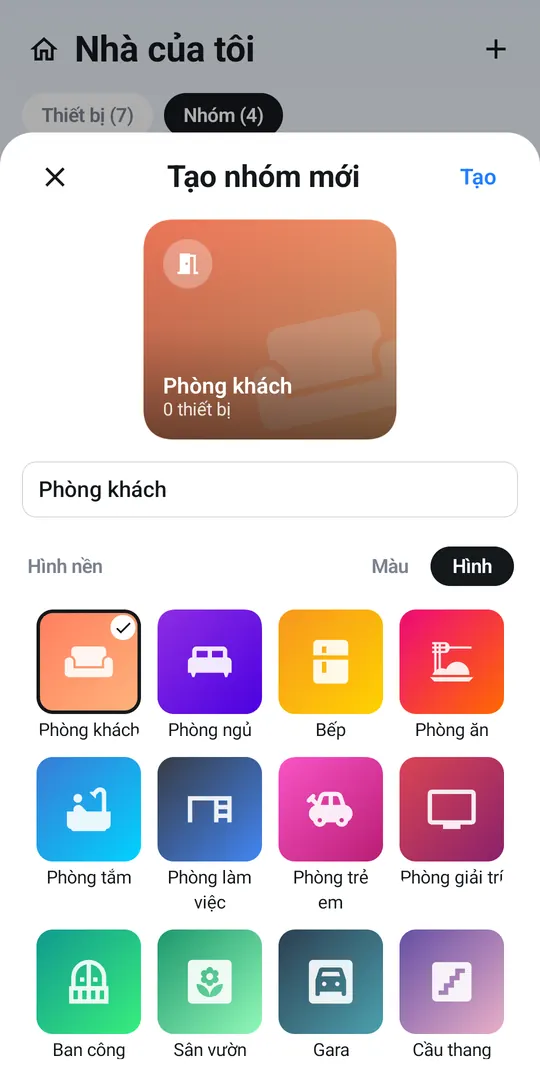
Name it, pick a background, tap Create -
To add devices: press and hold the group card → Devices in group → +, choose the type (Bluetooth, infrared, Wi-Fi) and pick the device. For multi-gang switches, pick the button to add (or All buttons). A device can belong to several groups.
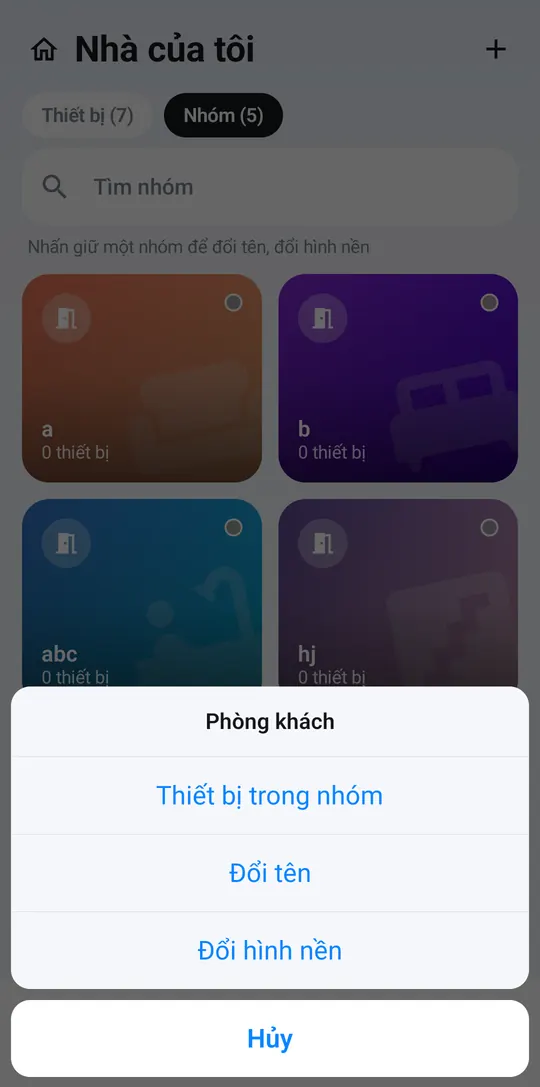
Press and hold the group card 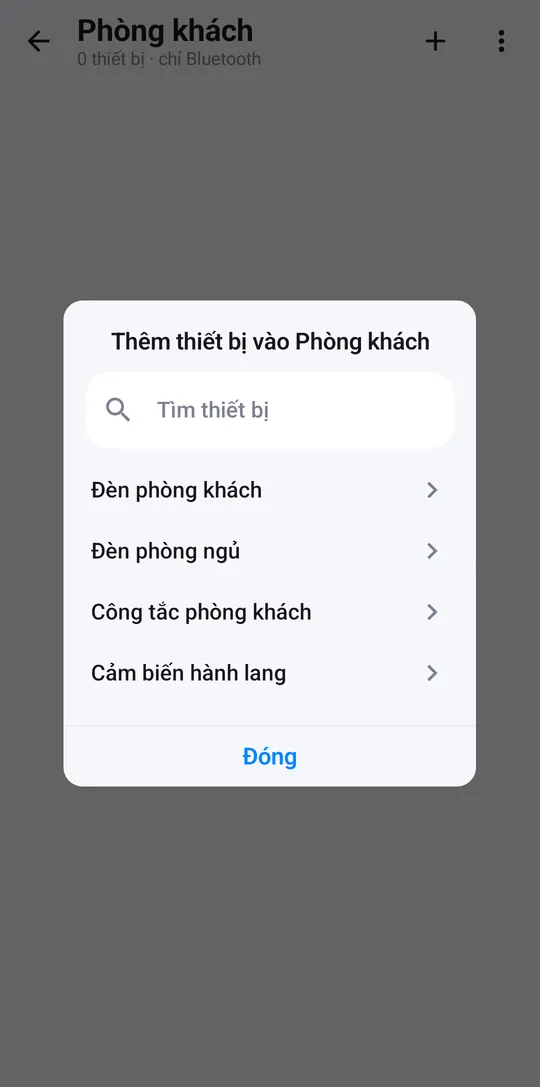
Pick a device 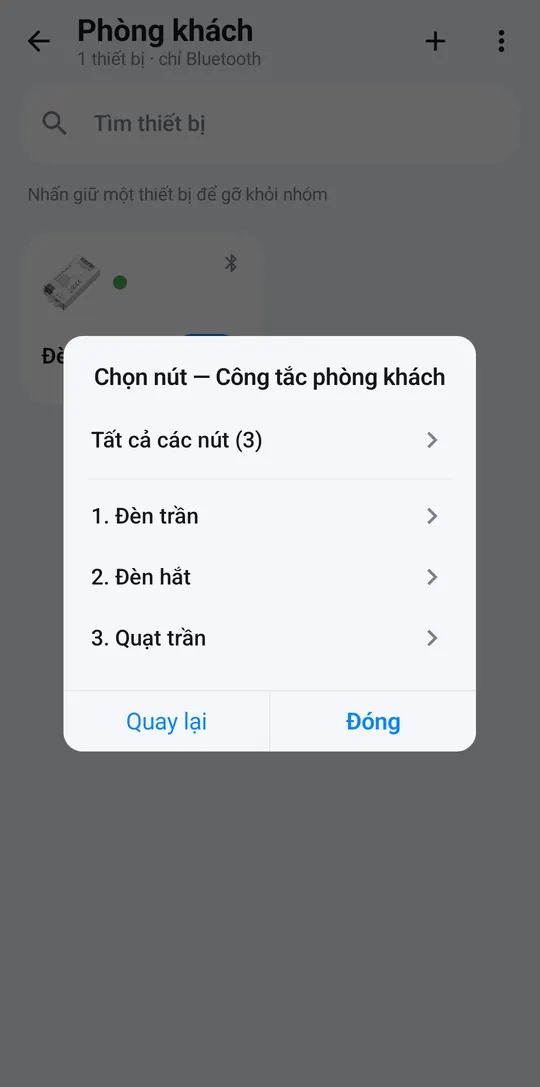
Switches: pick the button 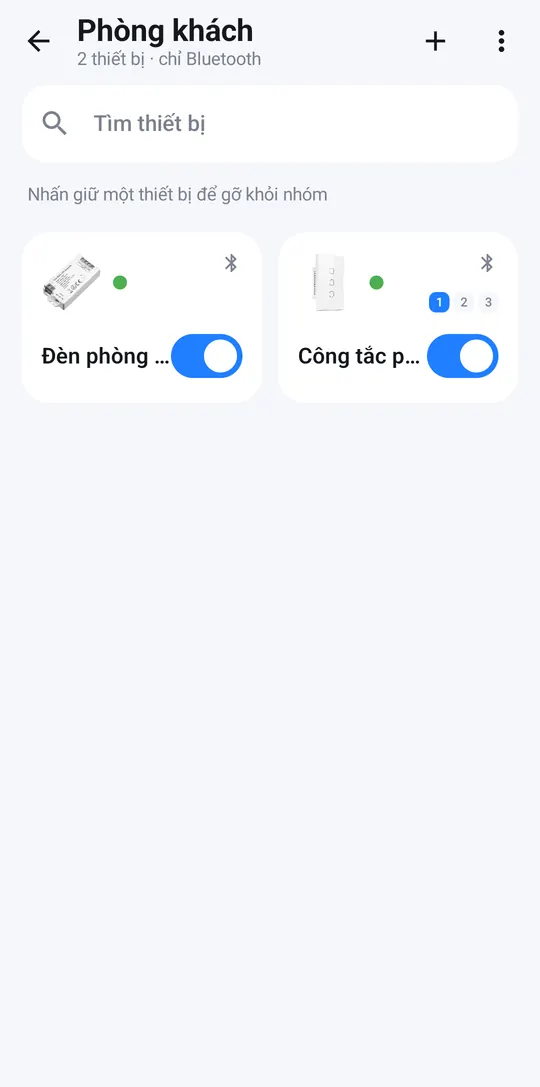
Devices in the group -
To control the group while away: on Devices in group, tap ⋮ → Remote control → Choose gateway → pick your smart hub → Save.
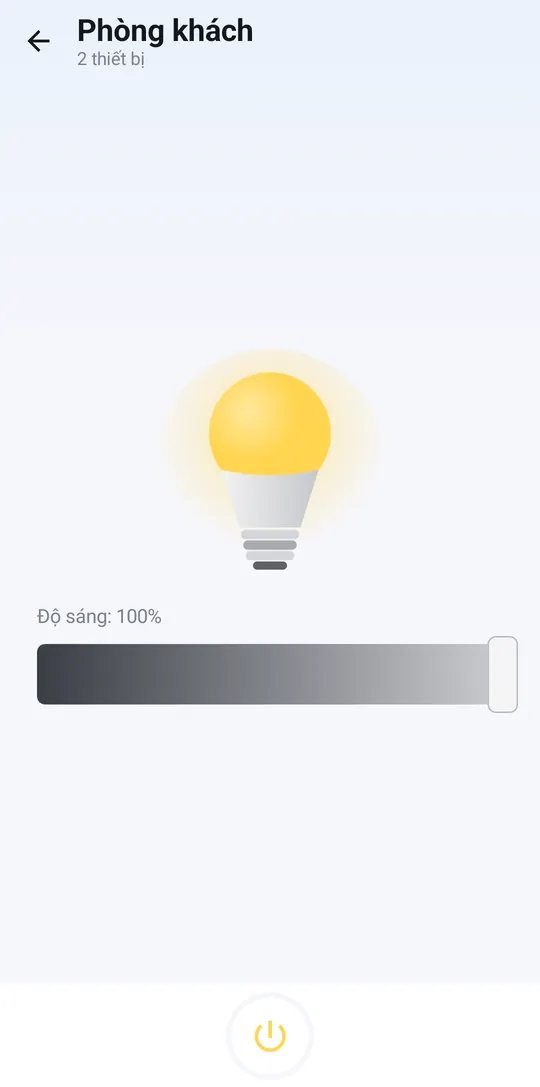
Controlling a group: tap the group card to open the group page. The power button in the bottom bar switches the whole room; Brightness, Colors and Color temperature appear depending on the lights in it. Air conditioners, TVs and Wi-Fi plugs in a group need an Internet connection.
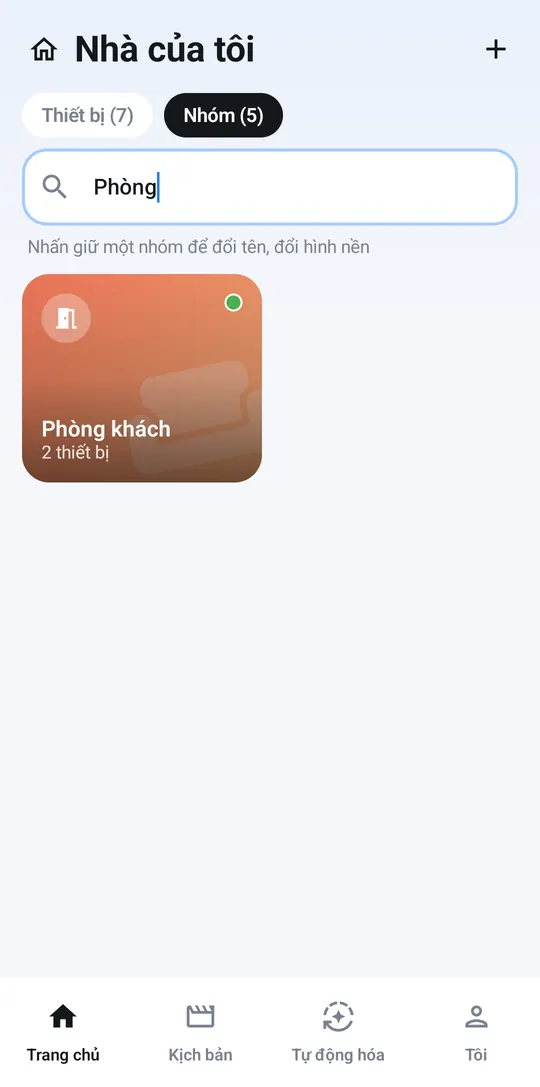
Press and hold a group card for Rename and Change background.